VSA 10: Version 10.24 release notes
NOTE During release deployment, all active web application sessions will be disconnected, and customers will need to log in again at the beginning of the maintenance window. SaaS customers will be informed of their maintenance window via status.kaseya.com.
Schedule*
| Region | Date | Starting Time (EST) |
|---|---|---|
| APAC | Thursday, January 15, 2026 | 12:00 |
| EMEA | Thursday, January 15, 2026 | 15:00 |
| US | Wednesday, January 21, 2026 | 21:00 |
| On-Premises | Tuesday, February 10, 2026 | 21:00 |
NOTE *The schedule is subject to change. Check the Status page for regular updates. Any changes made to the original schedule are denoted in red.
In this release, agents will be updated to version 10.24. Some features will only be available once the agent has been updated. For each tenant, agents are programmed to automatically, randomly update within a 36 hour window following the release deployment. A device's agent version can be viewed and can be manually updated by navigating to Device Details > Software > Agent Version.
The agent version for this release is 10.24.
VSA FIPS certification updates
FIPS 140-3 compliant cryptographic communications (On-Premises customers)
IMPORTANT Updated January 21st, 2026: We previously planned to include support for FIPS 140-3 compliant cryptographic communications for on-premise environments in this release. To ensure the highest level of quality and stability, this update has been rescheduled for inclusion in the next release, 10.25, which is currently planned for deployment in early February. We appreciate your patience and remain committed to delivering this enhanced compliance capability as soon as possible.
Key feature enhancements
Remote Desktop: Improvements to session startup speed
In this release, the initial connection time for remote desktop sessions has been significantly improved. By optimizing the session establishment process and reducing the number of required initialization steps, remote desktop sessions now start much faster, with connection times reduced by up to 5 seconds. Technicians will experience quicker, more responsive remote desktop access across all supported platforms.
Device Card: Natively interface with Command and PowerShell
This release introduces a redesigned, OS-native Command Prompt and PowerShell experience in the Device Card, delivering a modern, intuitive interface for technicians managing Windows, Mac, and Linux agents without requiring a remote desktop session. Refer to Terminal and Powershell.
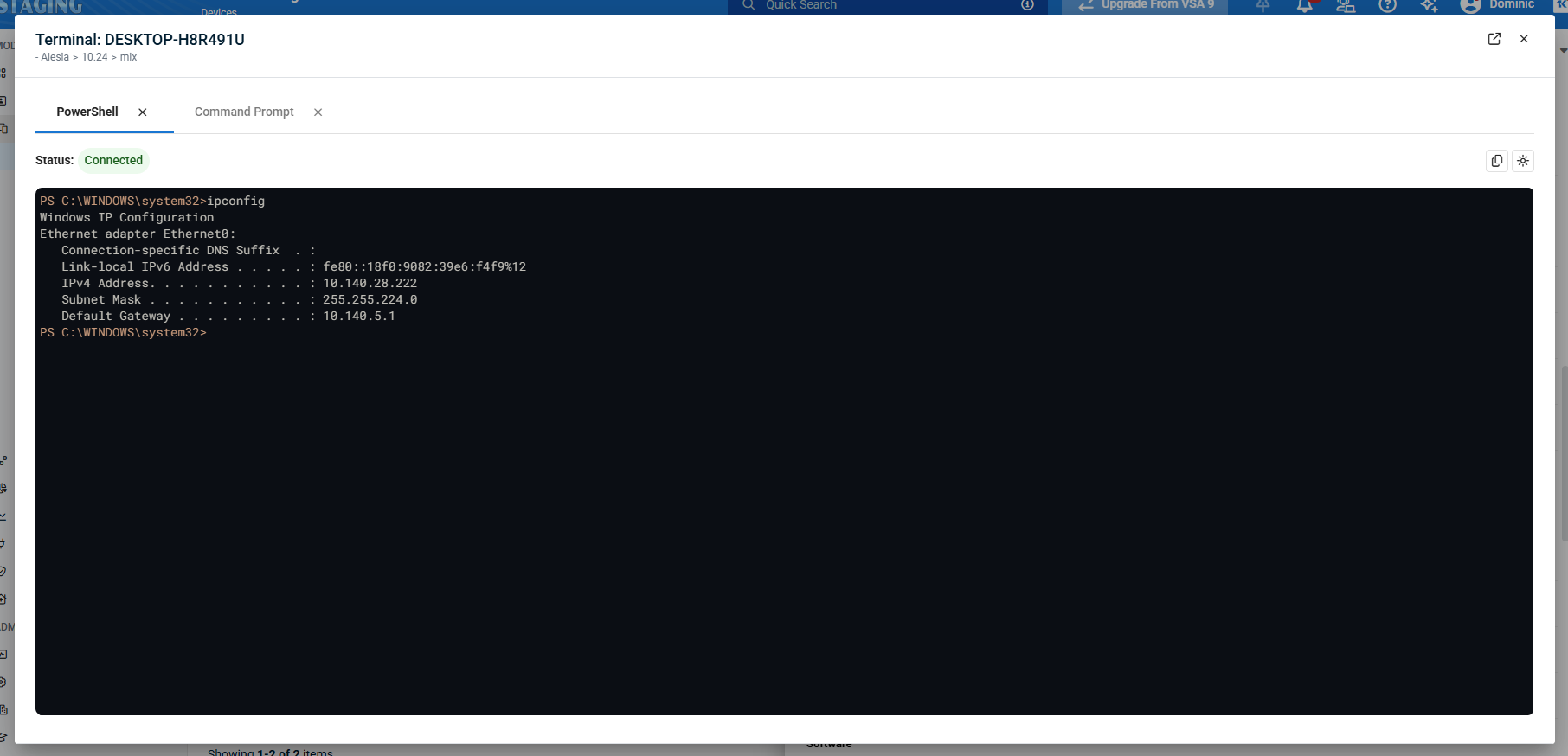
Key Enhancements:
- OS-Native Look & Feel: The new terminal interface closely matches the native experience of each supported operating system, with both light and dark mode options, dark mode being the default.
- Productivity Improvements:
- Copy and paste commands and outputs.
- Navigate command history using up/down arrows.
- Pop out the terminal to a new browser tab, enabling multiple active sessions across multiple devices.
- Session Management:
- Simplified statuses: Running Command has replaced Sensing Command, and Disconnecting has replaced Closing Connection.
- A new Reconnect? button has been added for quick session restart if disconnected.
- The Error status, with a Try Again? button to quickly re-run the previous command, has replaced the previous Connection Error status.
- Backward Compatibility: This enhancement requires an agent update which will be deployed automatically within 36 hours of the VSA 10 platform being updated to 10.24. The previous terminal UI is automatically displayed for agents which have not yet received the update.
Limitations:
- Interactive commands and multi-line scripts are not yet supported.
Automation: Role-based access controls (RBAC) for Automation Hub folders
We are excited to announce the release of team-level folder permissions management for Automation Hub folders. This enhancement introduces granular, role-based access control (RBAC) at the folder level, empowering administrators to precisely manage which teams can view, run, or edit specific automation content. Refer to Editing a folder.
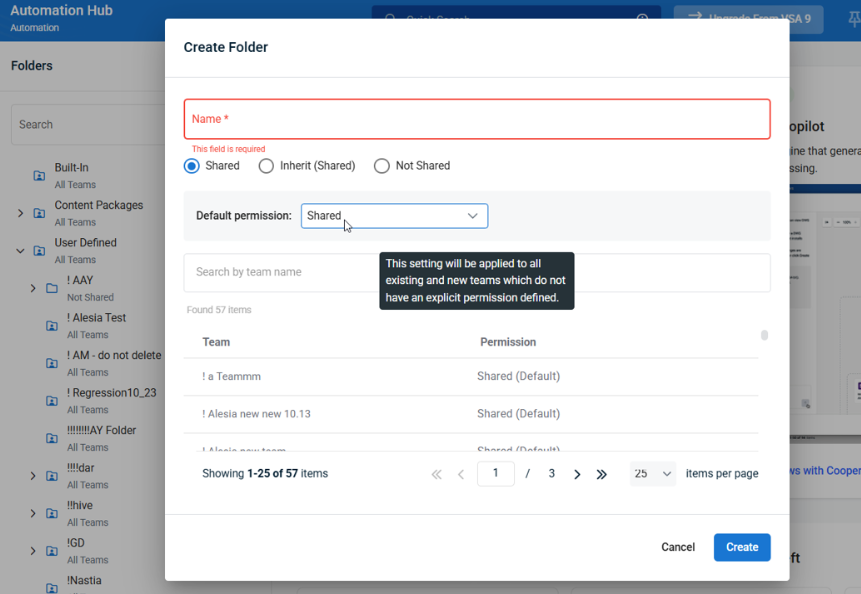
Key Features:
- Granular Folder Permissions: Administrators can now set permissions at the folder level for user-defined teams, allowing for fine-grained control over access to automation content (scripts, tasks, workflows, etc.). The following permissions can be set using the Create/Edit Folder dialogue:
- Shared: administrator can set a Default permission (Shared or Not Shared) for existing and new user-defined teams, with option to explicitly define it for individual teams.
- Not Shared: only administrators can access the folder.
- Inherit: permissions are inherited from its parent folder.
- Permission Inheritance: Subfolders automatically inherit permissions from their parent folder, with the option for administrators to customize or disable inheritance as needed.
- Team-based Sharing: Folders can be shared with all teams, specific teams, or set as not shared. Only teams with at least "View and Run Automation" permission are eligible for sharing.
- Technician User Experience:
- Non-admin users can only access folders shared with their team.
- Folder sharing status is clearly indicated in the UI.
- Built-in and Content Packages folders remain read-only for all users.
- All existing user-defined content created before this will be shared to all teams by default.
- Mobile Support: The new permission model is enforced on both WebApp and Mobile clients.
- Audit Logging: All changes to folder sharing and permissions are recorded in the Server Audit log for traceability, compliance and troubleshooting.
User Scenarios:
- Administrators can create, edit, and execute all automation content, and control access for each team at the folder level.
- Content creators (user-defined team members with Edit Automation permissions) can manage content within folders shared to their team.
- Technicians (user-defined team members with View and Run Automation permissions) can execute content in folders shared to their team.
Notes:
- Permissions for existing content: the built-in User Defined folder and all subfolders created prior to this release will be shared to all teams by default, maintaining pre-existing content access.
- Folder limit: The Automation Hub supports up to 300 folders per tenant. While more than 300 folders can be created, exceeding this limit may impact performance, and folders beyond this limit may not be visible in the UI.
- VSA9 Migration: Folders migrated from VSA9 migration wizard are set to Not Shared by default.
Automation: more flexible Workflows scheduling with hourly recurrence
You can now schedule workflows to run more frequently than once per day, with new options to set custom recurrence intervals between 3 and 12 hours (default: 6 hours). This enhancement gives you greater flexibility and control over automation timing. Refer to Scheduling a workflow.
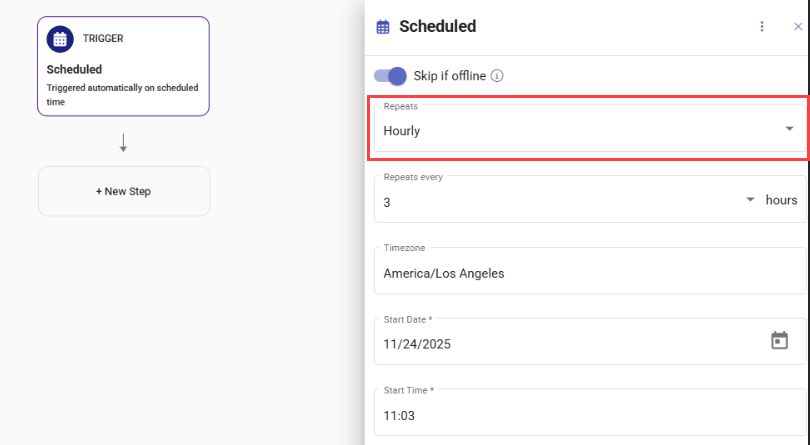
Key improvements:
- Set workflow recurrence intervals as frequent as every 3 hours.
- The UI clearly indicates the allowed interval and provides helpful hints to avoid scheduling conflicts.
- If a workflow’s execution time exceeds the recurrence interval, the next scheduled run will be automatically skipped.
- All existing scheduling and execution safeguards remain in place to ensure reliable automation.
Notifications: Direct links to source Monitoring Profile and Policy
In this release, notification details have been enhanced to help technicians and administrators quickly identify and manage the source of monitoring alerts. Notifications triggered by Monitoring policies now display the name of the policy and profile that generated the alert, along with a direct Go to Policy action which loads the device’s effective policy settings. This allows for faster review and adjustment of monitoring configurations, reducing unnecessary notifications and streamlining troubleshooting. Refer to Notification details.
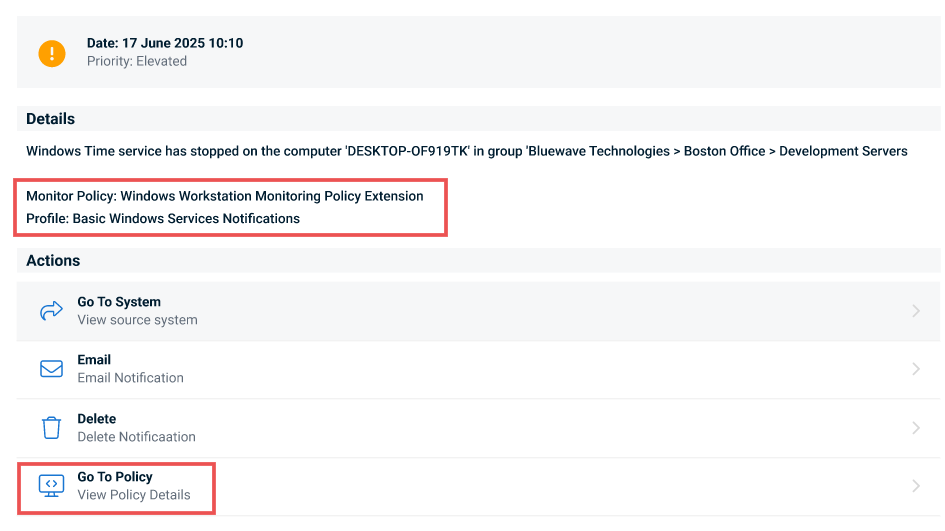
Key functionality:
- Notifications originating from a Monitoring policy include in their description the name of that policy and the name of the profile containing the settings that triggered the notification. In the notification details, there is a Go to Policy button under Actions.
- After clicking the Go to Policy button in the notification details, a user can see the Effective Settings modal window, which presents the actual policies. Administrators can be redirected to the policy or profile settings and modify them.
- Notifications generated based on Agent-side configuration do not include the policy or profile name, nor the Go to Policy button. Instead, they display the note: “(Generated by Agent configuration)”.
- If the policy or profile that triggered the notification no longer exists, the Effective Settings modal window shows a placeholder with an appropriate message.
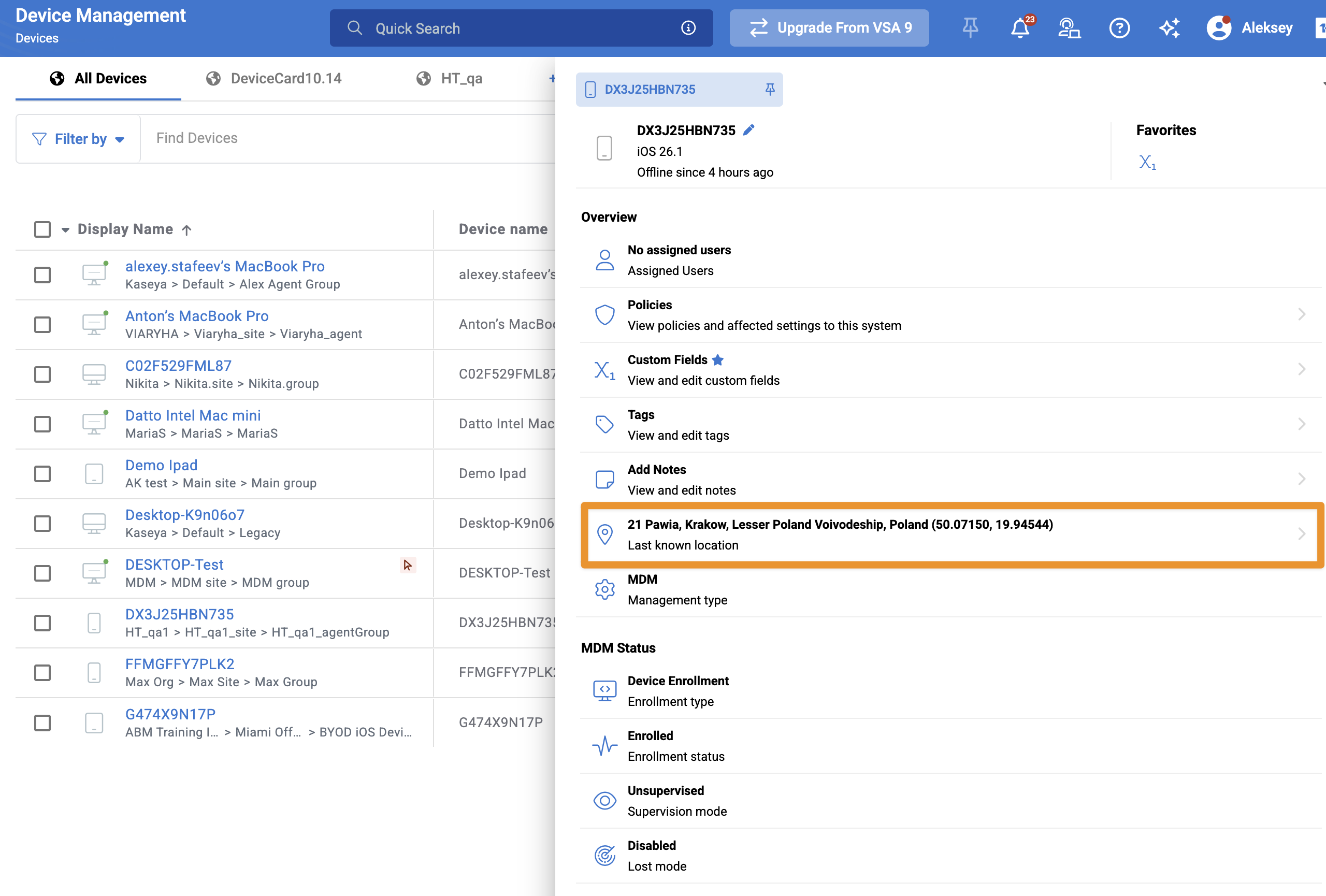
Device Management: Location tracking for managed iOS devices
In this release, location tracking has been added for managed iOS devices. The device card now includes a new field showing the latest known device location. Refer to the Device details pane.
Clicking the location opens a map with the device position, allowing technicians and fleet managers to quickly understand where a device is located.
NOTE To enable location tracking, the new Location Tracking profile will need to be applied to monitoring policies targeting iOS devices. Refer to Location Tracking profiles.
To use location tracking, the Kaseya Go app must be installed on the device and location permissions must be allowed.
Mobile application: Apply filters to the device list
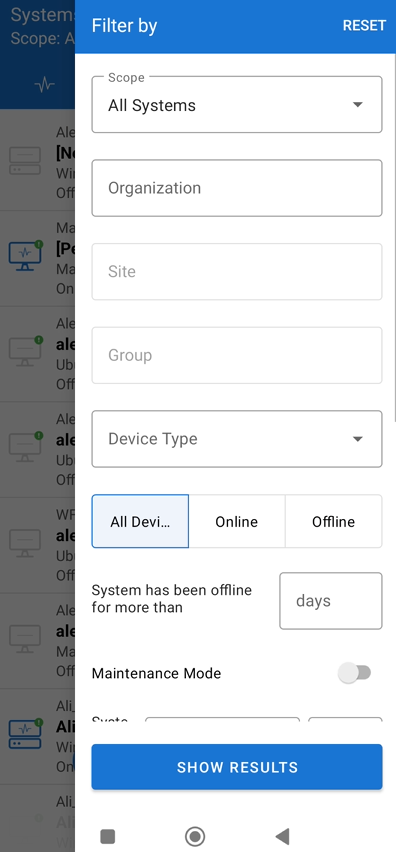
In this release, the ability to filter the device list directly in the mobile client has been added, making it easier to find and work with devices on the go.
Technicians can filter devices by key attributes such as scope, organization, site, group, device type, and device status, as well as apply advanced filters like offline duration, maintenance mode, CPU and memory usage, IP addresses, notes, and management type.
The filtering experience is available on both the iOS and Android version of the VSA X mobile app.
Patch Management: Patch Management policy form redesign
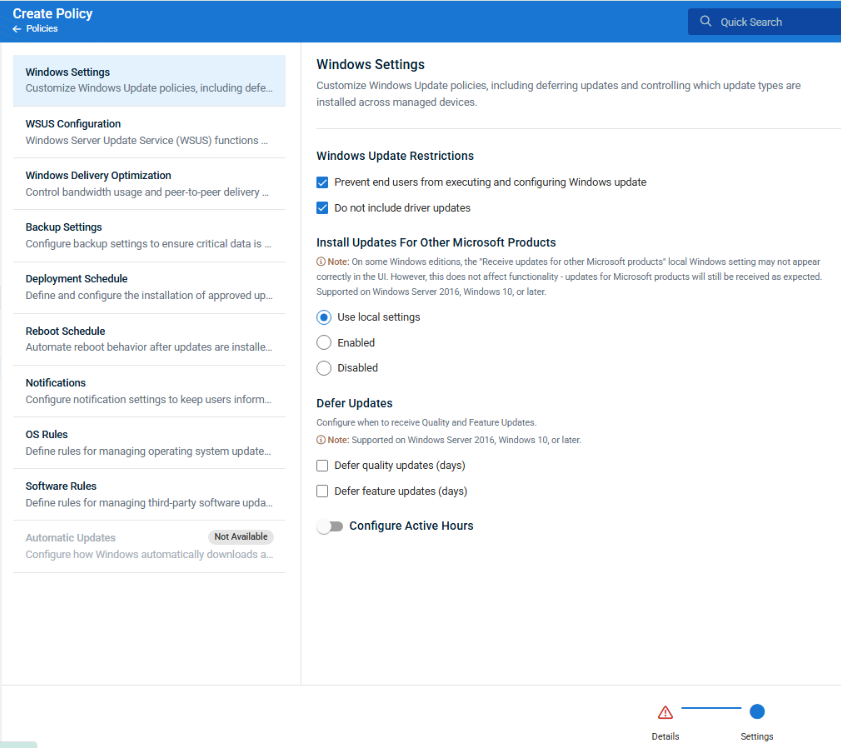
In this release, the Patch Management policy form has been redesigned to deliver a more logical and user-friendly experience for administrators. The new layout organizes settings into clear sections, making it easier to configure and manage patch policies. This update also introduces improved search and filter capabilities for third-party software rules, helping you quickly find and manage specific titles.
Key improvements:
- A modernized, intuitive interface with settings grouped into logical sections.
- Enhanced search and filter options for third-party software rules.
- Removal of obsolete macOS and iOS settings (now managed via MDM).
NOTE There are no changes to patch policy functionality in this release, this is just an interface update.
Notifications: Simplified global control for offline and online notifications
With this release, the configuration of agent offline and online notifications has been streamlined. The numeric System Offline Check Interval in Minutes setting now applies only to agentless network devices and notifications configured locally on managed devices using the Agent Manager application. Additionally, a new checkbox allows administrators to enable or disable all offline and online notifications across agents and network devices with a single setting, eliminating confusion and aligning with the updated Status Profile notification model.
Key Improvements:
- The numeric System Offline Check Interval in Minutes field in Configuration > Settings > General now applies only to agentless network devices and notifications configured locally on managed devices using the Agent Manager application. For agents with a Status Monitoring profile assigned, the check interval will be dependent on the notification delay setting in the profile configuration
- A new global checkbox, labeled Disable offline and online notifications globally, now controls whether offline and online notifications are enabled or disabled for all devices.
- When disabled, no offline or online notifications will be sent, regardless of individual profile settings.
- When enabled, notification timing and behavior are managed through Status profiles.
- Existing configurations are automatically migrated to ensure consistent behavior after upgrade.
Policy Targeting: Support for targeting macOS 26 (Tahoe) devices
With this release, you can now create and apply policies specifically for devices running macOS 26 (Tahoe). In the policy targeting criteria, macOS 26 appears as a selectable OS type alongside previous macOS versions. Selecting All Existing and New Future Mac OS Type will also automatically include macOS 26. Policies targeted to macOS 26 will apply only to devices running that version. Existing policies targeting specific earlier macOS versions remain unaffected.
MDM: Notification via webhooks for application events
This release introduces a new webhook-based MDM event system, providing faster, more robust, and more reliable delivery of MDM events.
NOTE To enable this functionality for on-prem customers, they must whitelist the MDM webhooks API IP address, 74.235.48.191. Otherwise, updates will occur every 30 minutes.
3rd-Party Patching: December-January Updates
There are no notable updates to the software catalog in this release.
Refer to VSA 10 software application catalog.
Fixes
VSA X Agent
- Fixed an issue where the Agent could consume excessive CPU on FreeBSD/OPNsense systems.
- Fixed an issue where the VSA X Remote Control.msi installer did not complete installation via workflow, requiring manual intervention.
- Fixed an issue where the VSA X Manager application could not discover OIDs for SNMP v3 devices due to authentication failures, enabling full SNMP v3 device management within the product.
Automation
- Fixed an issue where the Write File workflow action could fail with a Padding is invalid and cannot be removed error due to interrupted downloads, by adding validation and automatic retry logic.
- Fixed a syntax error in the Deploy Datto Endpoint Backup starter pack template for VSA 10, ensuring the installer now runs successfully during workflow execution.
- Fixed an issue where task execution failed on large endpoint scopes (4,000+ devices).
Autotask Integration
- Fixed an issue where excessive API calls from the VSA 10 integration caused extreme latency and repeated edits within Autotask tickets.
- Fixed an issue where VSA 10 notifications were intermittently not converted to Autotask tickets.
Device Management
- Fixed an issue where the Device Management view failed to display correct uptime and last seen information for some offline machines.
- Fixed an issue where the Device Management view incorrectly prompted users to save changes even when no modifications had been made.
- Fixed an issue where the Device Management page could display incorrect offline durations for some machines.
NOTE This fix is dependent on computer status information which was introduced in the 10.23 release. Devices that have been offline since before that release can still show incorrect information because no data was collected for them after release.
KaseyaOne Integration
- Fixed an issue where audit logs did not capture the username when a Kaseya One SSO user disabled the Kaseya One integration, ensuring user actions are now properly recorded.
Mobile App
- Fixed an issue where system uptime was not displayed for online devices in the mobile application.
- Fixed an issue where the Android mobile application would not display active remote sessions on the first attempt, requiring users to revisit the Remote Control screen.
- Restored the missing SSH session option for network devices in the Android version of the mobile application.
On-Prem
-
Fixed an issue where scheduled reports were not reliably delivered to all email recipients in on-prem setups.
Site Maps
- Network discovery probes with ICMP enabled now correctly exclude devices that already have the VSA10 agent installed, making it easier to identify unmanaged systems.
Web App
- Fixed an issue where VSA 10 login credentials were not auto-populating in Microsoft Edge.
- Improved the Audit Log details page by adding a scroll bar when content exceeds the visible area.


