Location Tracking profiles
NAVIGATION Administration > Configuration > Profiles > New Profile > Location Tracking (Monitoring) profile type
NAVIGATION Administration > Configuration > Profiles
PERMISSIONS Administrator
Using the Location Tracking profile, you have the ability to enable and configure location tracking on MDM managed Android, iOS and iPadOS devices.
You can define how often a device location is updated, as well as how accurately a device's location is tracked.
NOTE To use location tracking, the Kaseya Go app must be installed on the device and location permissions must be allowed. Refer to VSA 10 MDM: enrollment
Profile configuration settings
 Enable Location Tracking

Select Enable Location Tracking to enable or disable location tracking.
Tracking Interval
Define how often the device location should be updated. Shorter intervals provide more frequent updates but can increase battery consumption.
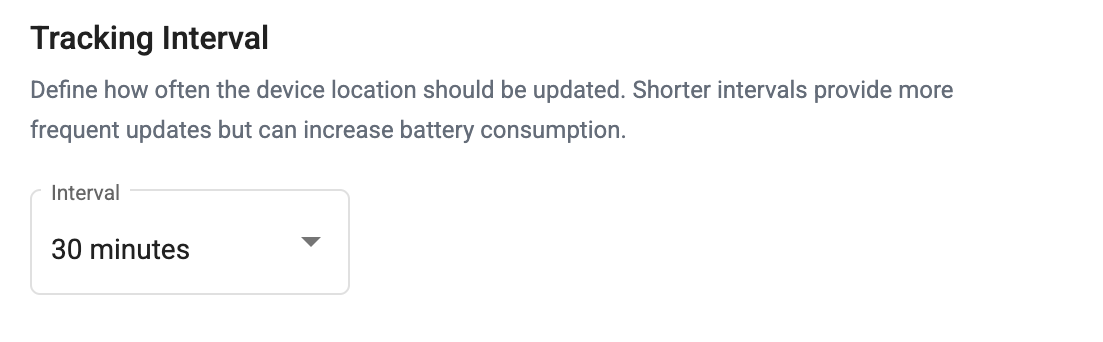
You can choose from the following options in the Interval dropdown:
- 5 minutes
- 15 minutes
- 30 minutes
- 1 hour
- 3 hours
- 6 hours
- 12 hours
- 24 hours
NOTE The device must be online in order for location data to update.
Tracking Mode
Choose how accurately the device location is tracked.
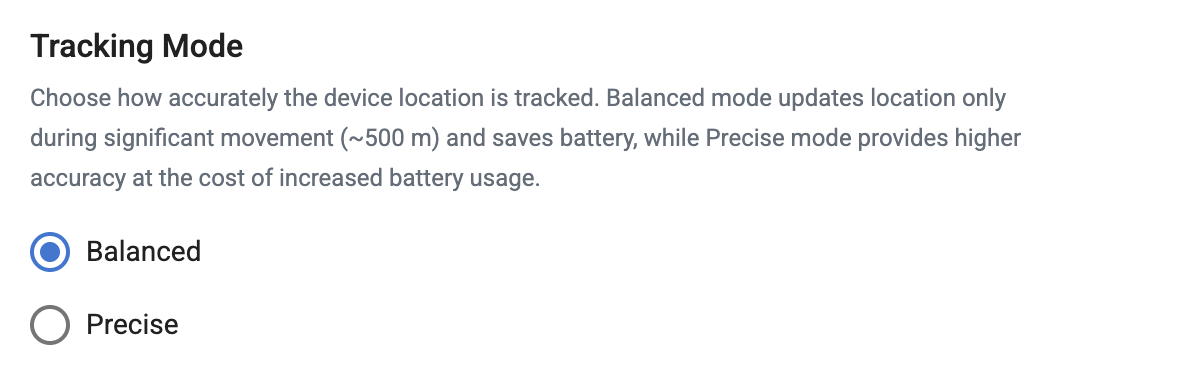
You can choose from the following options:
- Balanced: Balanced mode updates the device's location only during significant movement (~500m). This option uses less battery than Precise mode.
- Precise: Precise mode provides higher location accuracy at the cost of increased battery usage on tracked devices.
How to...
Create the profile
To create a Location Tracking profile, complete the following steps:
- From the left navigation menu in VSA 10, navigate to Configuration > Profiles.
- The Profiles page will load. At the top of the page, click New Profile.
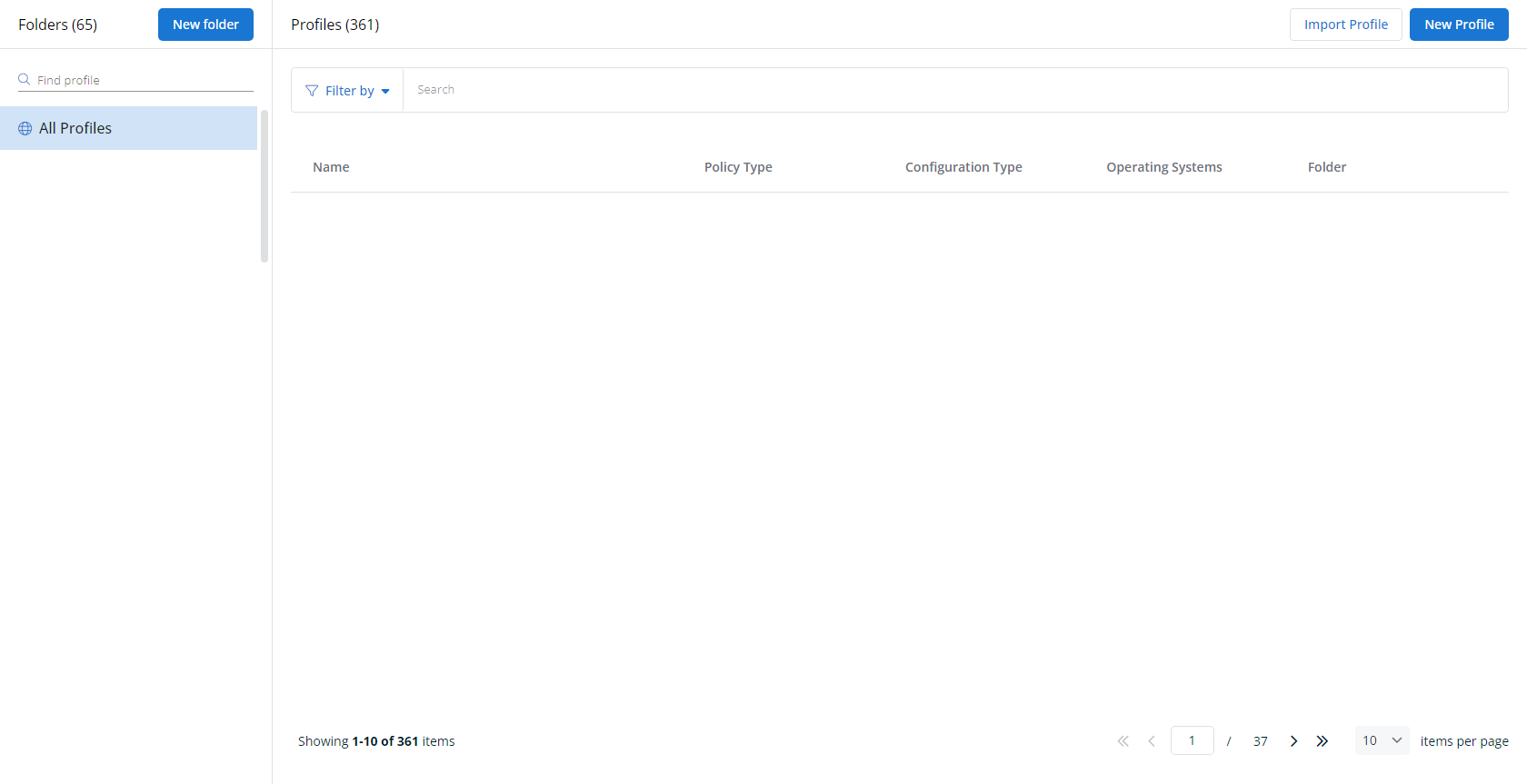
-
The Create New Profile page will load.
EXAMPLE
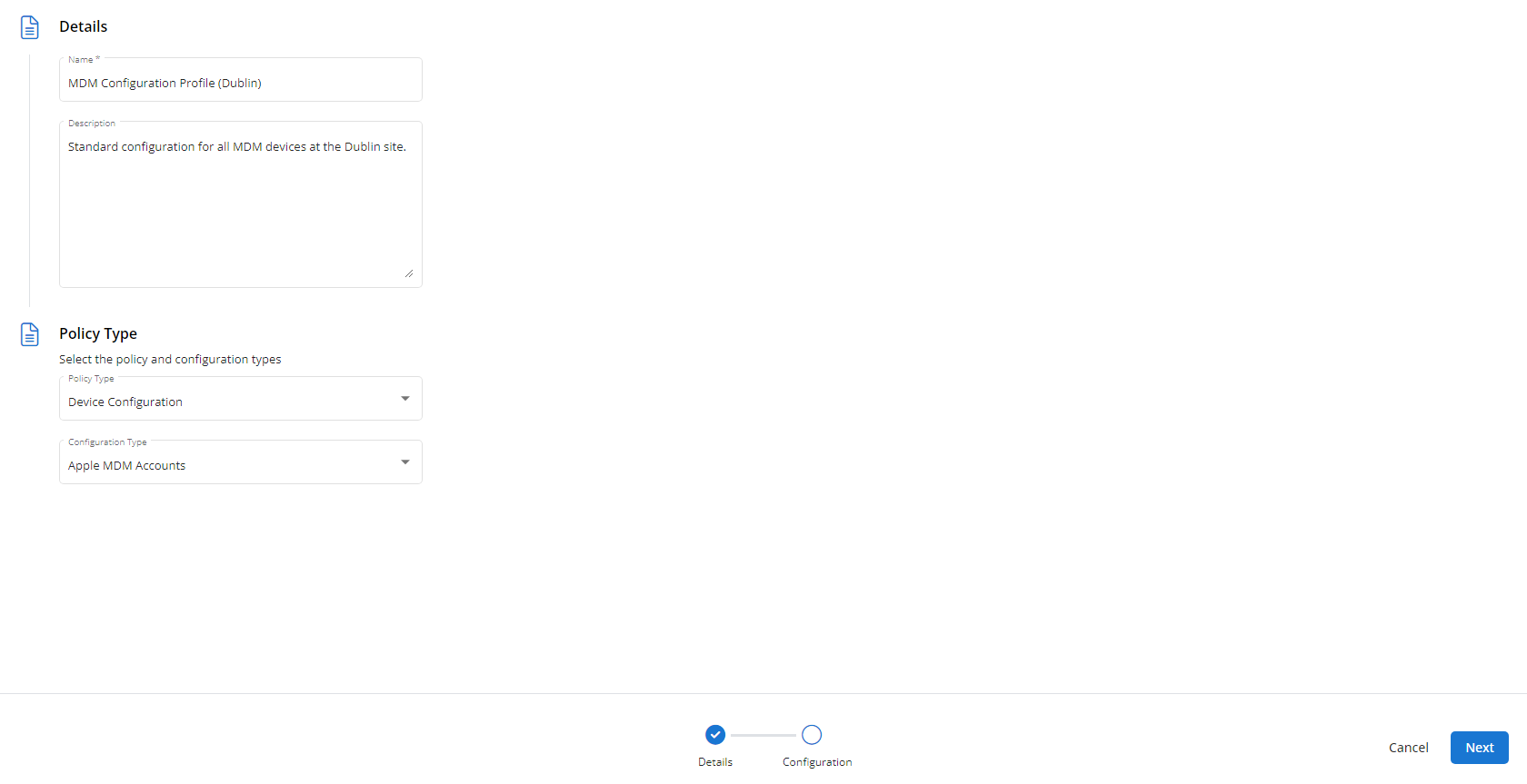
- In the Name section, enter a name for the profile.
- Optionally, enter information about the profile in the Description section.
- In the Profile Type section, select Location Tracking underneath Monitoring.
- Optionally, assign relevant tags in the Content Tag section.
- Click Next.
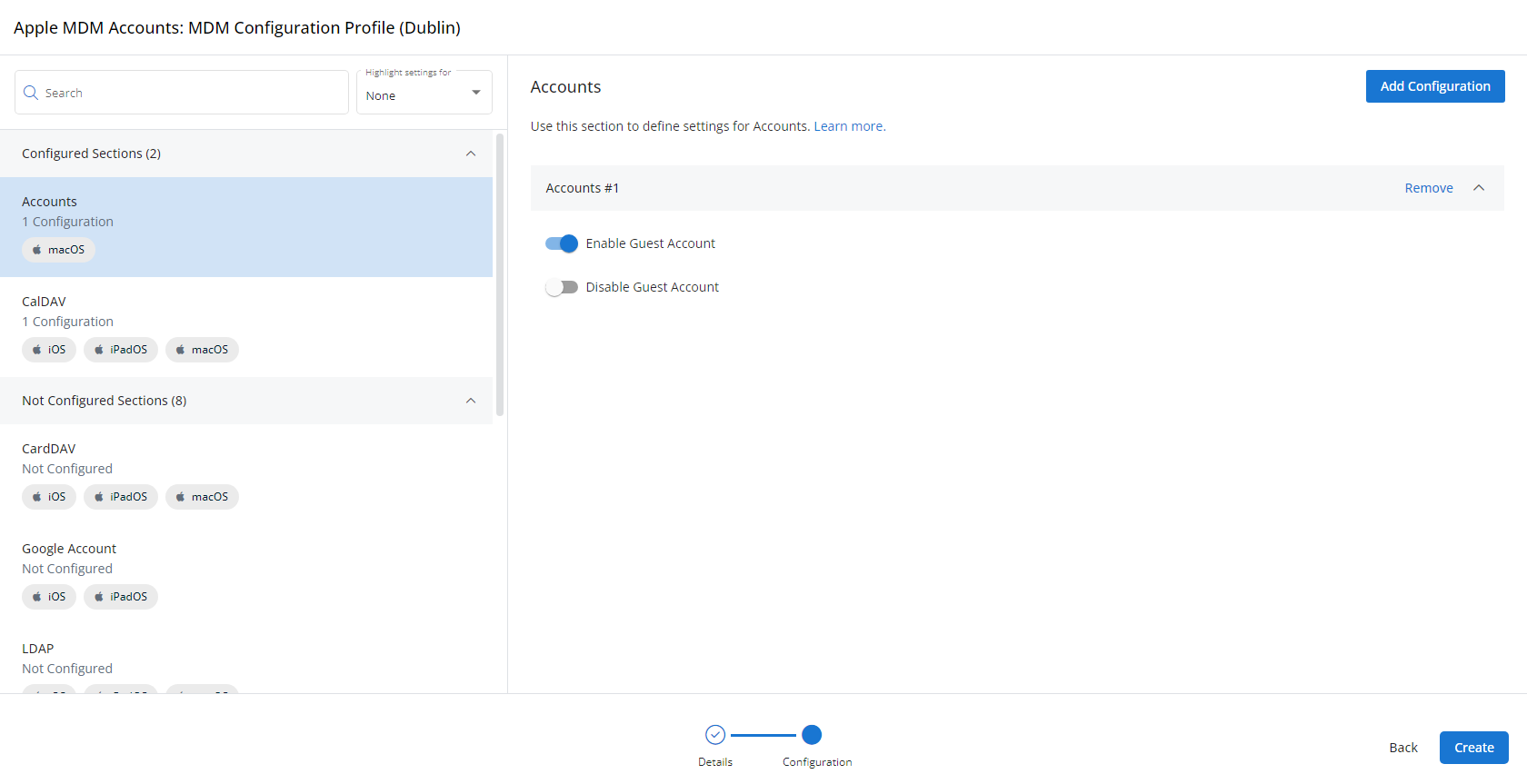
- Customize the profile to your needs. Reference the Profile configuration settings section, if needed.
- When you've finished customizing the profile, click Create.
EXAMPLE
Assign the profile to a policy
Next, you'll need to create a policy that defines the devices to which you'd like to automatically apply your configuration. Complete the following steps:
- Navigate to Configuration > Policies. Create a new policy or edit an existing policy.
- Click Assign Profile.
- Locate the profile you'd like to use. Select it by clicking the radio button next to its name.
EXAMPLE
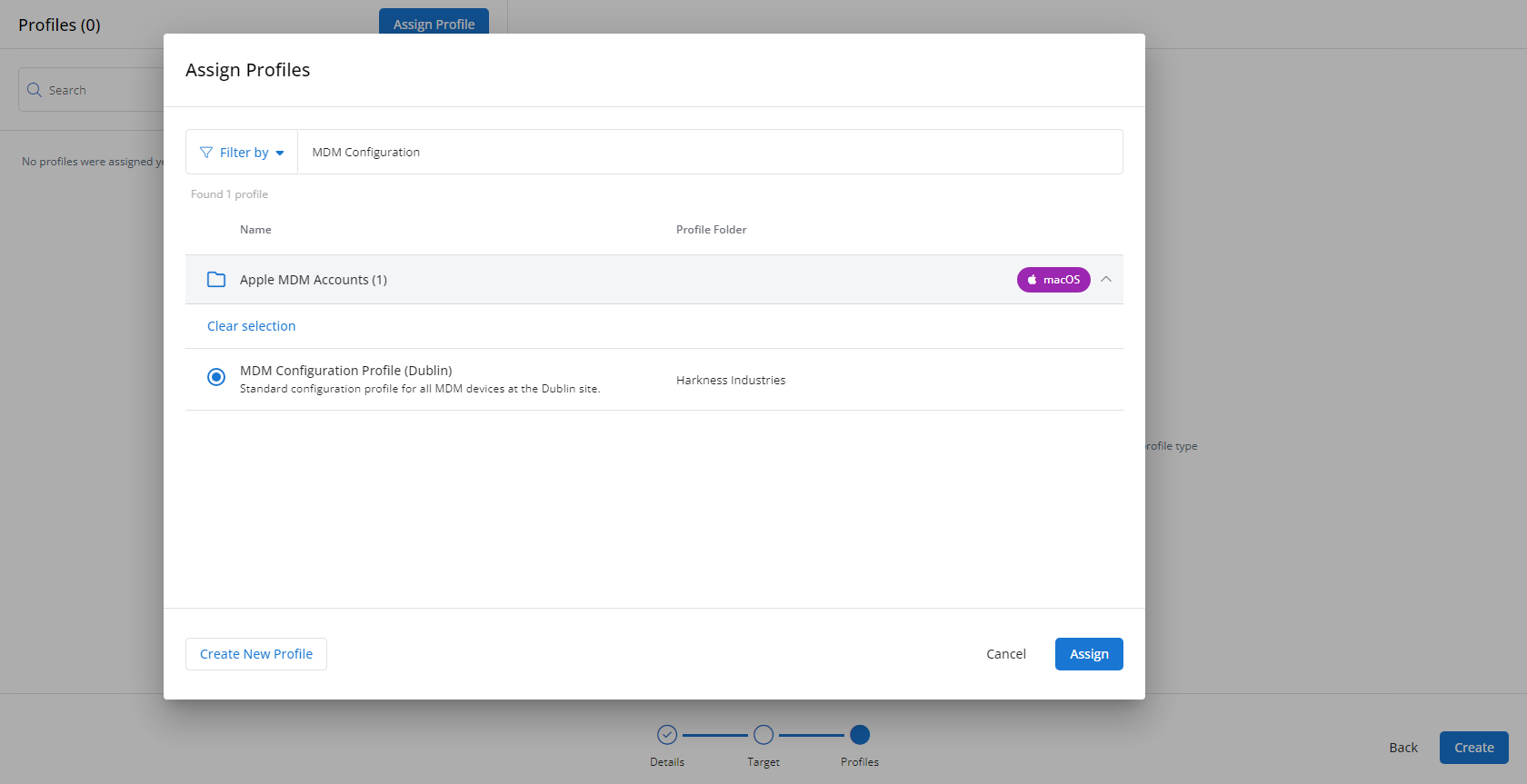
- Click Assign.
- VSA 10 will begin enforcing the selected profile immediately. You can view it in effect at Configuration > Policies.
EXAMPLE