Create workflows with Kaseya Assist
NAVIGATION Modules > Automation > Automation Hub
PERMISSIONS Automation > View Tasks & Scripts
PERMISSIONS Automation > Edit Tasks & Scripts
Kaseya Assist automates workflow creation as part of an ongoing commitment to incorporating AI advancements. With Kaseya Assist, you can generate workflows by typing your desired automation outcome, eliminating the need to start from a blank canvas or have explicit scripting skills. This guide helps you get started and craft effective prompts for optimal workflow results.
NOTE The Kaseya Assist features within VSA 10 do not use your data to train, retrain, or improve the base models.
Kaseya Assist features and limitations:
- Trigger types: Notification, Ad-hoc, and Scheduled trigger types are supported.
- Conditions: Kaseya Assist does not currently support custom organizations, sites, machine groups, custom fields or tags. Only built-in scopes, Operating System (OS) types and in-workflow defined variables can be used for conditions (for example, All Windows Computers, All Windows Server 2022, All Systems and any in-workflow PowerShell or CMD command defined variables.)
- Actions: Most standard workflow actions are supported; some advanced or custom actions may not be available.
- Variables: Kaseya Assist can generate workflows with variables in conditions and actions, but complex variable manipulation may still require manual adjustments.
- Integrations: Kaseya Assist can create workflows that will work with your integrated PSA (Autotask, BMS, Vorex, or ConnectWise) to create and update tickets.
How to create workflows with Kaseya Assist
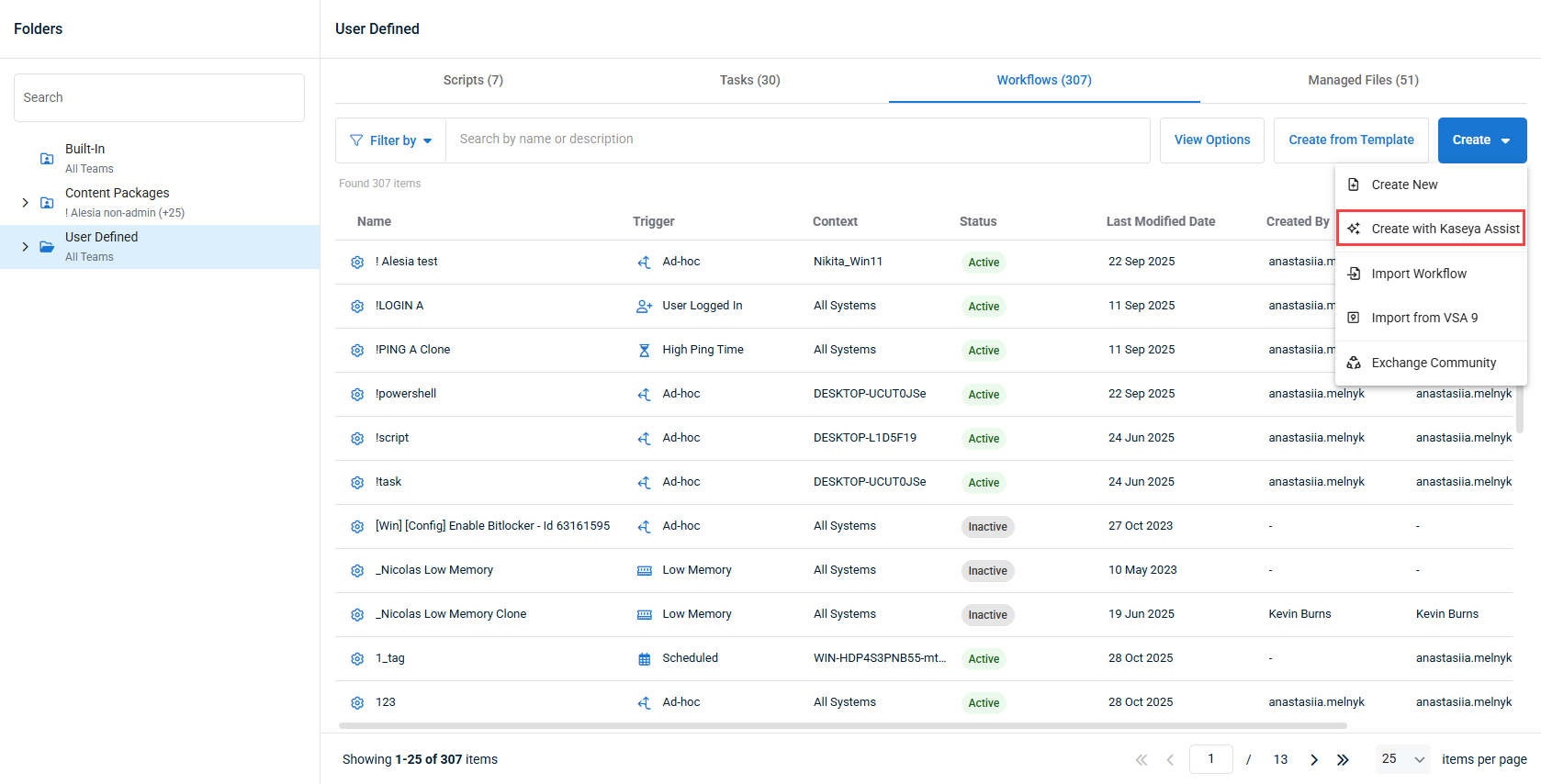
- In Automation > Automation Hub, select the User Defined folder or any subfolder where you would like to create the workflow, and select the Workflows tab.
- In the Create menu, click Create with Kaseya Assist.
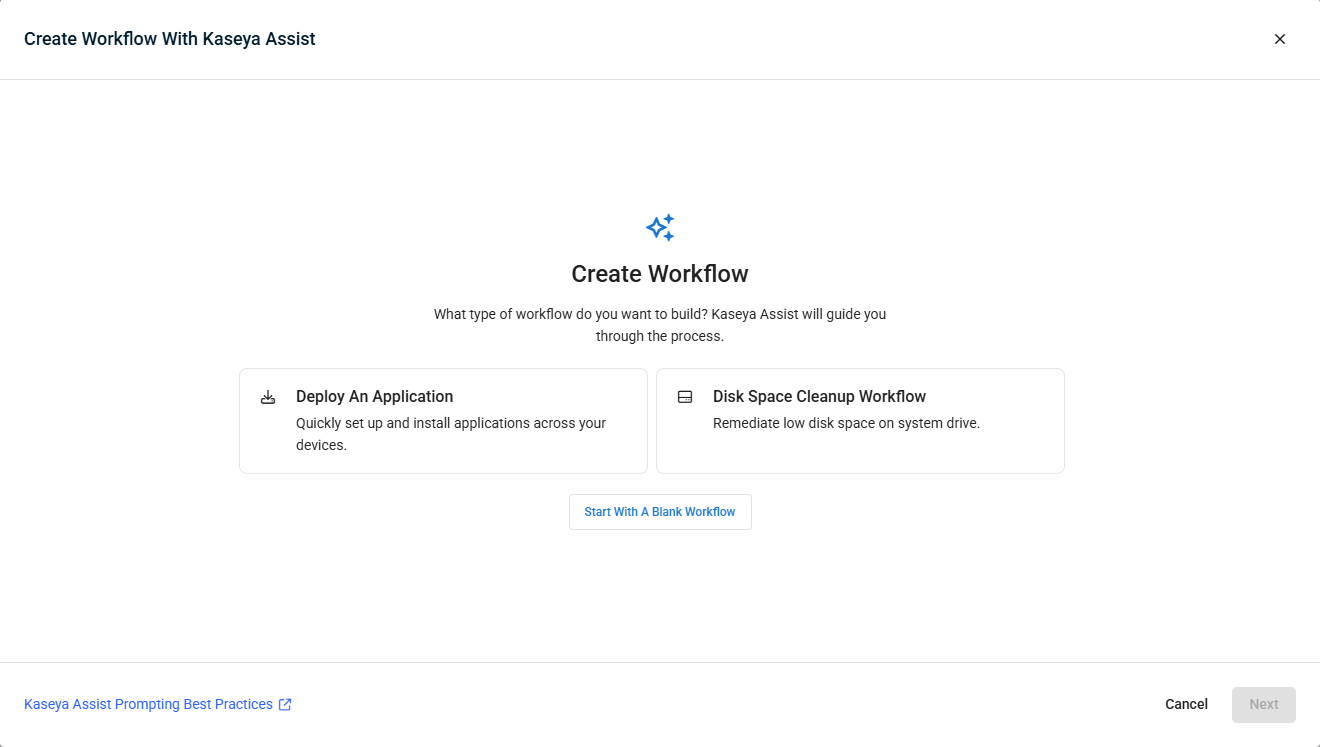
- Kaseya Assist prompts you to start with either a pre-defined prompt card or a blank prompt. If selecting a pre-defined prompt, click Next after selecting it.
- During the interaction with Kaseya Assist you can refine your request with additional prompts. Each additional prompt sent will change the suggested workflow canvas, so you can review the individual actions generated.
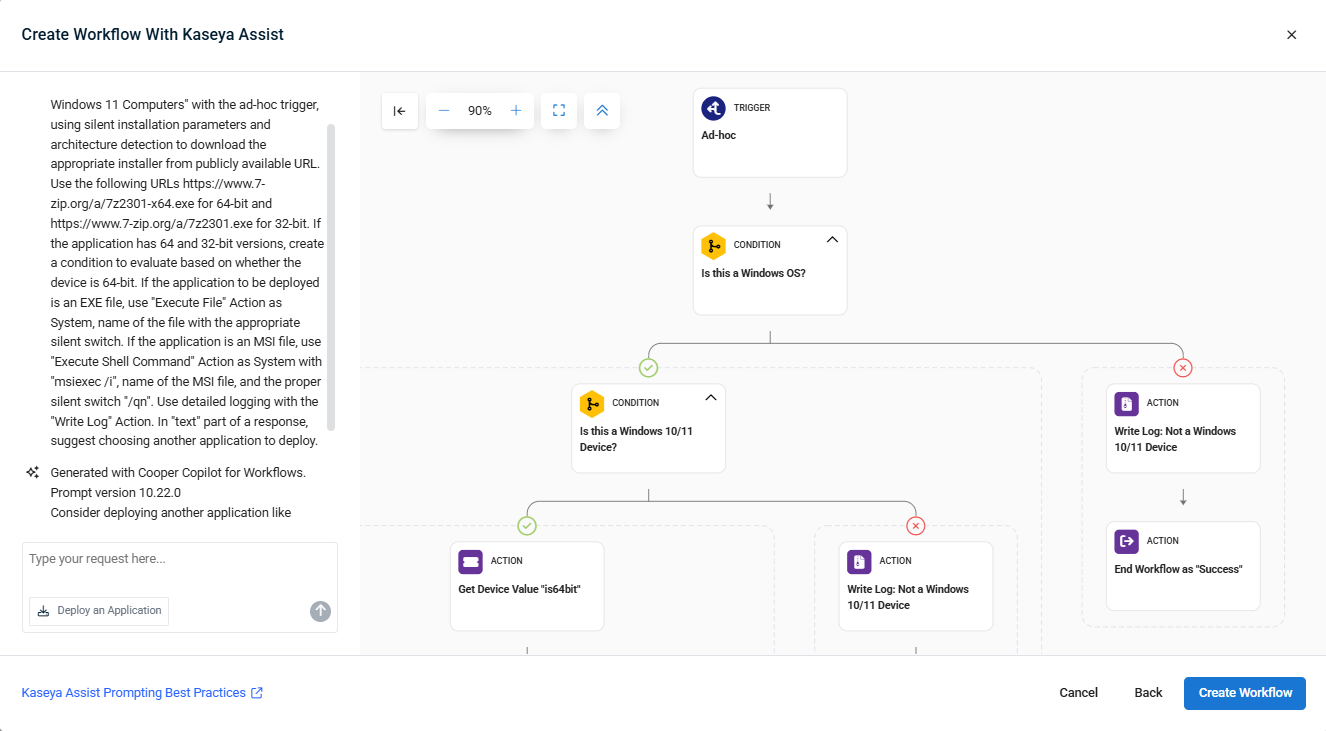
- When satisfied with the outcome, save it by clicking Create Workflow.
- After creation, you are free to edit the existing workflow's context, actions and conditions as normal. Refer to Creating and editing a workflow.
The basics of effective prompting
Be clear and specific
The more specific your request, the better results you'll get. For example, let's compare the following prompts:
- Basic prompt: "Install Chrome"
- Better prompt: "Install Google Chrome browser on all Windows 10 and 11 computers, then create a desktop shortcut"
The second prompt provides essential details that help the AI generate a more accurate and comprehensive workflow.
Include key information
For the best results, try to include these key elements in your prompts:
- What: The main action(s) to perform, and the desired outcome
- Where: Targeted OS types
- When: Ad-hoc or Scheduled
- How: Preferred methods or requirements, like Registry values, PowerShell and CMD commands
- Why: Explain the purpose to help Kaseya Assist understand the overall context
Let's explore examples for each element:
What: The main action and desired outcome you want to achieve
Some examples of what statements:
- Do a system cleanup
- Stop and restart the print spooler service
- Set registry key value for firewall configuration
- Send message to current logged-in user
- Write log entry
- Deploy a PDF viewer
- Write log entry with informational message
- Create PSA ticket
- Get device value for free disk space
- Delete files from a specific folder
- Download file from the internet
Where: The targeted operating system types
- Scopes for workflow context and conditions:
- All Windows Computers
- All Windows 10 Computers
- All Windows 11 Computers
- All Windows 2012 Servers
- All Windows 2016 Servers
- All Windows 2019 Servers
- All Windows 2022 Servers
- All Windows 2025 Servers
- All Windows Servers
- All macOS Devices
- All Linux Systems
- All Systems
- OS types for workflow conditions:
- Windows
- Mac
- Linux
When: Specific variable-based conditions and ad-hoc or scheduled workflow recurrences
Some examples of when statements:
- "If no user is currently logged on"
- "If the system has been running for more than 14 days"
- "When available disk space falls below 15%"
- "Only run during non-business hours (after 7pm and before 6am EST)"
- "If the Windows Firewall service is disabled"
- "If BitLocker encryption status is off"
- "On a weekly schedule, every Monday at 3am EST"
How: Any specific preferred methods or requirements, like registry values, PowerShell and CMD commands
Some examples of how statements:
- "Using silent installation parameters (/S /v/qn)"
- "By setting Registry value HKLM\SOFTWARE\Policies\Microsoft\Windows\WindowsUpdate\AU\NoAutoUpdate to 0"
- "By executing PowerShell command as System account"
- "Using the device's Working Directory for temporary files"
- "With a 60-second timeout"
- "By checking the exit code for success (0) or failure"
- "With a user-friendly message asking for permission"
- "By first stopping dependent services"
- "Using a specific custom encryption key"
Why: Explaining the purpose helps Kaseya Assist understand the overall context
Some examples of why statements:
- "To improve system performance"
- "To ensure compliance with security policies"
- "To prepare for upcoming software deployment"
- "To troubleshoot connectivity issues"
- "To prevent data loss"
- "To reduce help desk tickets related to printing issues"
- "To gather information for auditing requirements"
- "To ensure consistent user experience across all devices"
- "To remediate a known vulnerability"
- "To free up disk space on critical systems"
Example format with all the elements above
"I need a workflow that [WHAT] on [WHERE] when [WHEN], using [HOW] because [WHY]."
Complete example: "I need a workflow that clears Windows Update cache files on All Windows 10 Computers when free disk space falls below 10%, using PowerShell commands executed as System account and logging the amount of space recovered because frequent Windows Update failures are causing help desk tickets."
From basic to better prompts
As you start using Kaseya Assist more, you'll begin to understand how the inclusion of certain language or specifics affects the results of your prompts. Below are some tips to help you get the most out of Kaseya Assist for automating workflows.
1. Specify the operating system
Always mention which operating system your workflow should target:
- Basic: "Create a workflow to clear temporary files"
- Better: "Create a workflow to clear temporary files on Windows 10/11 computers"
2. Include conditions when relevant
If your workflow should only run under certain conditions, state them clearly:
- Basic: "Restart the computer"
- Better: "Restart computers after hours only if no user is logged in"
3. Describe user interactions
If user interaction is required, explain how it should work:
- Basic: "Update software"
- Better: "Update software after asking users for permission with a customized message and a 2-hour postpone option"
4. Specify success and failure paths
Explain what should happen in different scenarios:
- Basic: "Install Adobe Reader"
- Better: "Deploy Adobe Reader on Windows computers. If installation succeeds, create a log entry and end the workflow as Success. If it fails, create a ticket in the PSA system with detailed information and end the workflow as Failed."
Examples of effective prompts
Here are some real-world examples of effective prompts:
Software deployment
"Create a workflow to deploy the latest version of Firefox on all Windows workstations. Before installation, check if at least 500 MB of free disk space is available and end workflow as failed if not true. If a user is logged in, display a message asking for permission to install with options to proceed or postpone for 1 hour. If installation succeeds, create a desktop shortcut."
Maintenance tasks
"Create a weekly maintenance workflow for Windows servers that runs every Sunday at 3am EST. It should clear temporary files, stop, clean spooler files and restart the print spooler service, check disk health, and send a report email to the IT admin with the results and any errors encountered."
Security remediation
"Create a workflow that identifies Windows computers with passwords set to never expire. For each affected user account, generate a report with the user name and last password change date, then set the password to expire in 90 days. Log all changes in the workflow history and create a summary report."
Data collection
"Create a workflow that inventories all installed software on Windows and Mac devices, exports the list to a Comma-separated Values (CSV) file, and emails it to admin@example.com once a month. Include software name, version, install date, and size."
Provide example values and formats
"Create a workflow that backs up the folder C:\CustomerOrders to \\ServerName\Backups\ each night at 10pm EST, creating a subfolder with the current date (format: YYYY-MM-DD)."
Common mistakes to avoid
When prompting Kaseya Assist, details are important to help it understand what actions need to be taken. Specifics such as OS, applications, error codes, and so on will help to achieve your desired outcome. Review the examples below to see how details make all the difference.
Being too vague
- Avoid: "Fix computers"
- Better: "Repair Windows Update service on Windows 10 computers that are showing error code 0x80070002"
Omitting critical context
- Avoid: "Delete old files"
- Better: "Delete files in the Windows temp folder that are older than 30 days to free up disk space"
Next steps
Now that you understand how to create effective prompts for Kaseya Assist, start experimenting with the feature. Begin with simpler workflows and gradually increase complexity as you become more familiar with the system.
If you encounter any issues or have questions about using Kaseya Assist, the support team is ready to help. Your feedback is invaluable in helping us refine this technology.


