Controlling devices
NAVIGATION Modules > Devices > Device List > select a device > Manage
PERMISSIONS Remote Control > Allow 1-Click access
PERMISSIONS Remote Control > Use IT Glue Passwords
VSA 10 provides multiple tools with which you can remotely manage a target device. This article describes the available options and how to access them.
How to...
You can access remote management options for your endpoints on the Device List page. To do so, perform the following steps.
- In VSA 10, navigate to Devices > Device List.
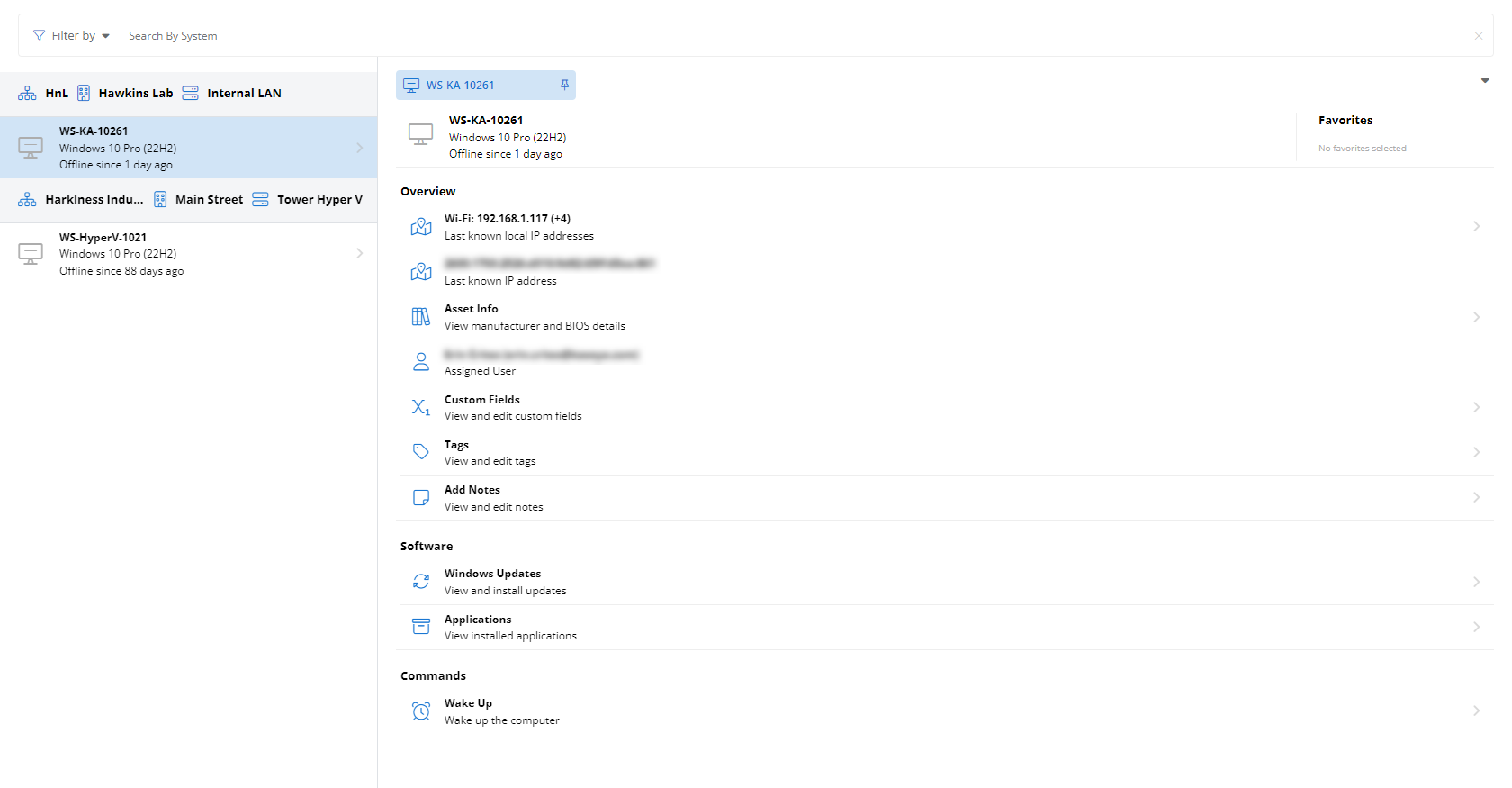
- View your managed endpoints, grouped by organization.
-
Enter all or some of a device name in the search bar to filter results. The list of devices will begin to filter the results as you type. You can apply additional criteria to your search by selecting options from the Filter by list.
-
Click any search result to populate the endpoint's extended details and management options in the device details pane.
-
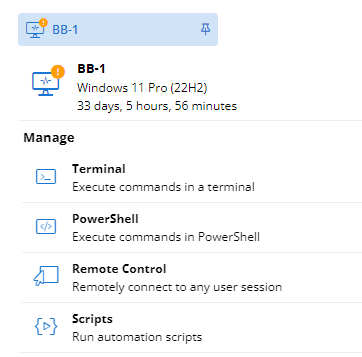
Scroll down to the Manage section.
-
The following options will appear. Note that availability of these features may vary depending on the device type and your level of VSA access.
NOTE Click the  icon next to any field where it appears to view extended information and access management features.
| Feature | Definition |
|
Terminal |
Opens a terminal or PowerShell session (where available) on the endpoint as an administrator and execute commands; refer to Terminal and Powershell |
|
Remote Control |
Enables connection to and collaboration with any active user session on the endpoint; refer to Remote Control |
|
Scripts |
Deploys scripts to the device from your VSA 10 instance; refer to Scripts |


