Kaseya Assist
NAVIGATION Header > Kaseya Assist
PERMISSIONS All users
Kaseya Assist for VSA 10 is a contextual AI assistant integrated into VSA 10 that enables users to interact with the knowledge base using natural language, providing intelligent answers based on the user's current page and prior conversation.
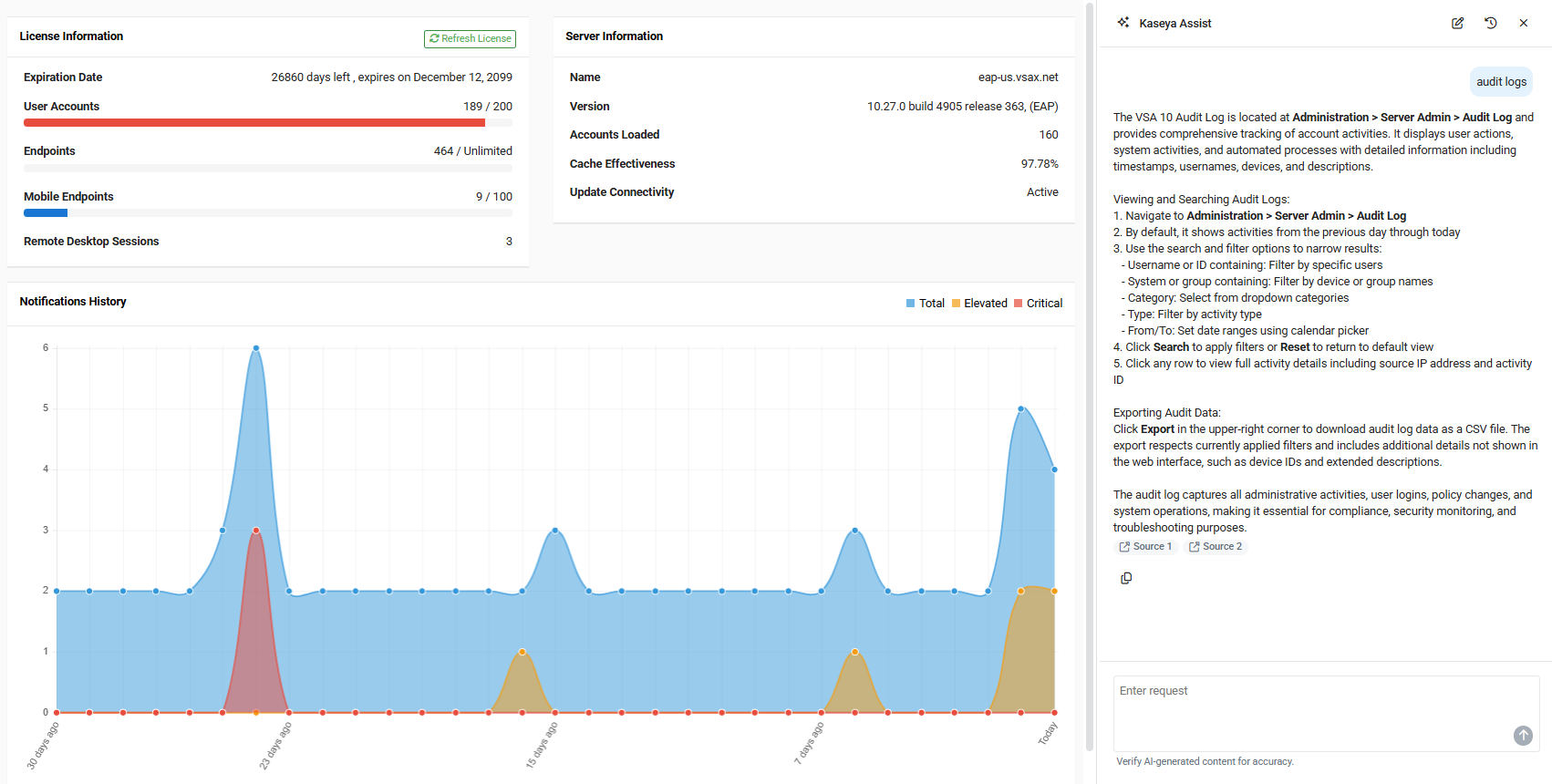
Using Kaseya Assist
To launch Kaseya Assist, navigate to the header and click the Kaseya Assist icon. This launches Kaseya Assist on the right side of the window.
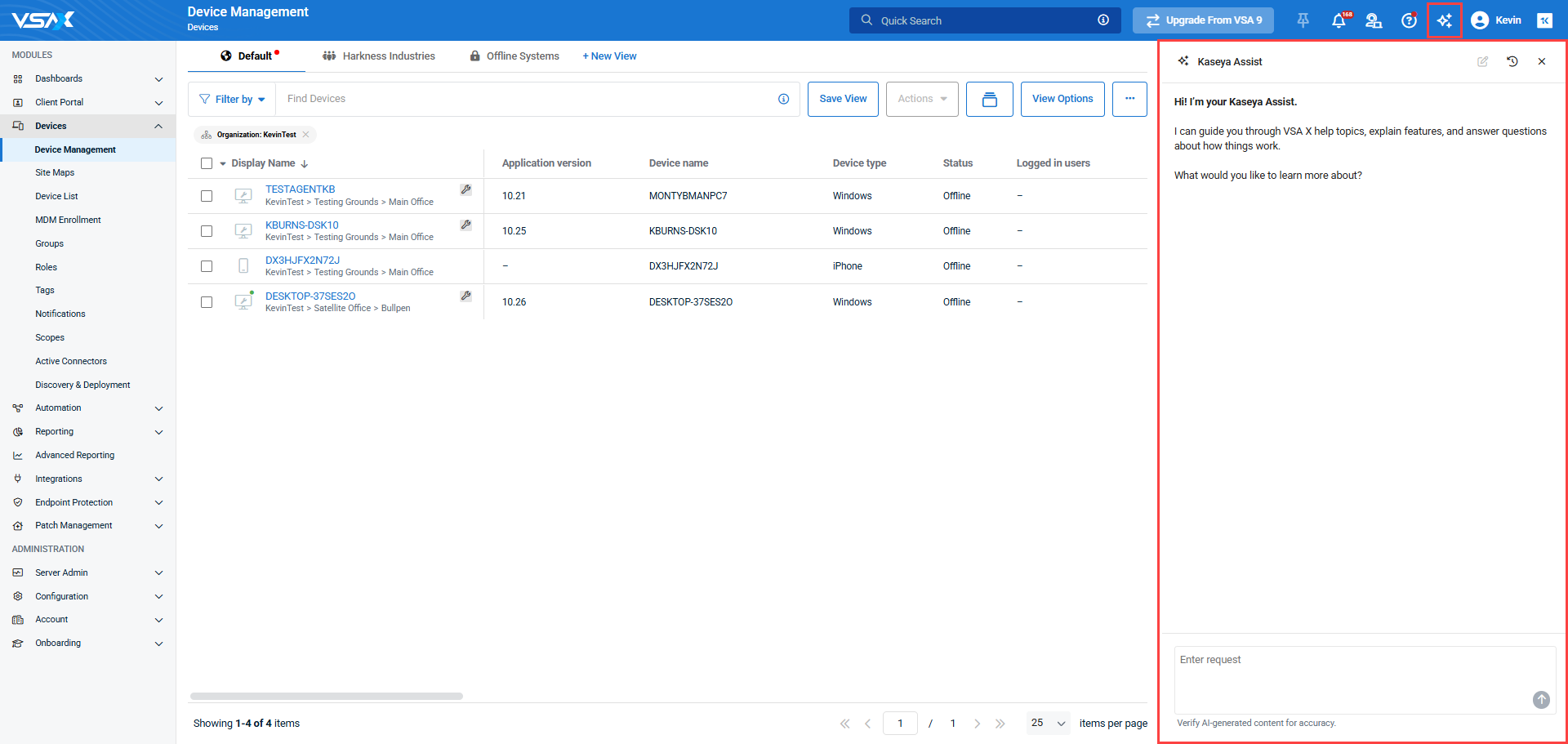
The Kaseya Assist window's width can be adjusted to take up more or less of the screen, and it will remain on the page while you navigate through VSA 10, allowing you to easily reference your chat and continue it if needed.
Entering a new prompt
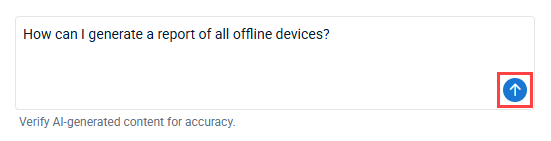
Enter a request into the text box at the bottom of the Kaseya Assist window, and submit it by using the Submit button, or hitting the Enter key on your keyboard.
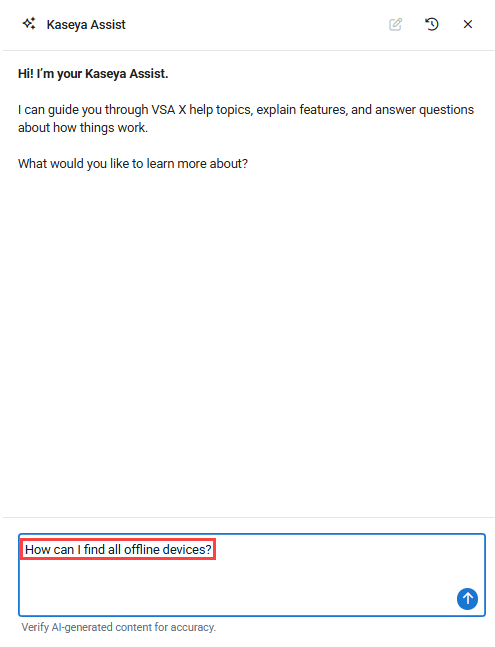
Once submitted, Kaseya Assist will cross-reference the entire VSA 10 knowledge database to find answers to your query, and present them in a clear, readable format.
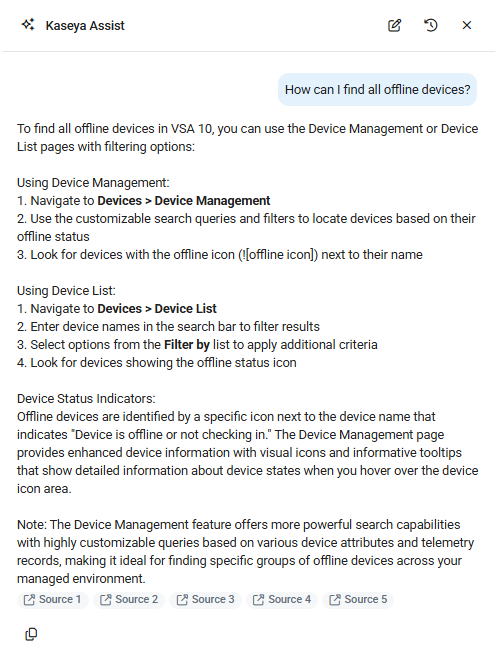
The result of your query will always include links back to the source documents referenced (labeled as Source 1, Source 2, etc.), as well as a Copy icon at the bottom of the response so you can easily copy the response to your clipboard. If copied using the Copy icon, the copied text will also include all source links.
Other Kaseya Assist actions
Within Kaseya Assist, you can perform any of the following actions:
- Continue the chat: To continue an active chat with Kaseya Assist, enter a new request in the chat window. All prompts and responses will be contained within the current chat.
- Start a new chat: To start a new chat, click the New button at the top of the Kaseya Assist window. This will archive the current chat, placing it in the chat history in read-only mode, for you to reference as needed.

- View chat history: To view previous chats with Kaseya Assist, click the History icon. This opens the last 30 days of chat history for you to review and revisit, organized by date.

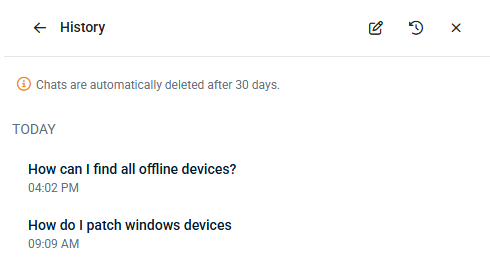
NOTE Kasyea Assist automatically deletes chats after 30 days.
- Close Kaseya Assist: To close Kaseya Assist, click the Close button. This closes the Kaseya Assist panel, but your chat will be preserved for 30 days, so you can return to it even after logging out and back in.



