Remote View for MDM enrolled iOS devices
NAVIGATION Modules > Devices > Device List > MDM Enrolled iOS device
PERMISSIONS All Users
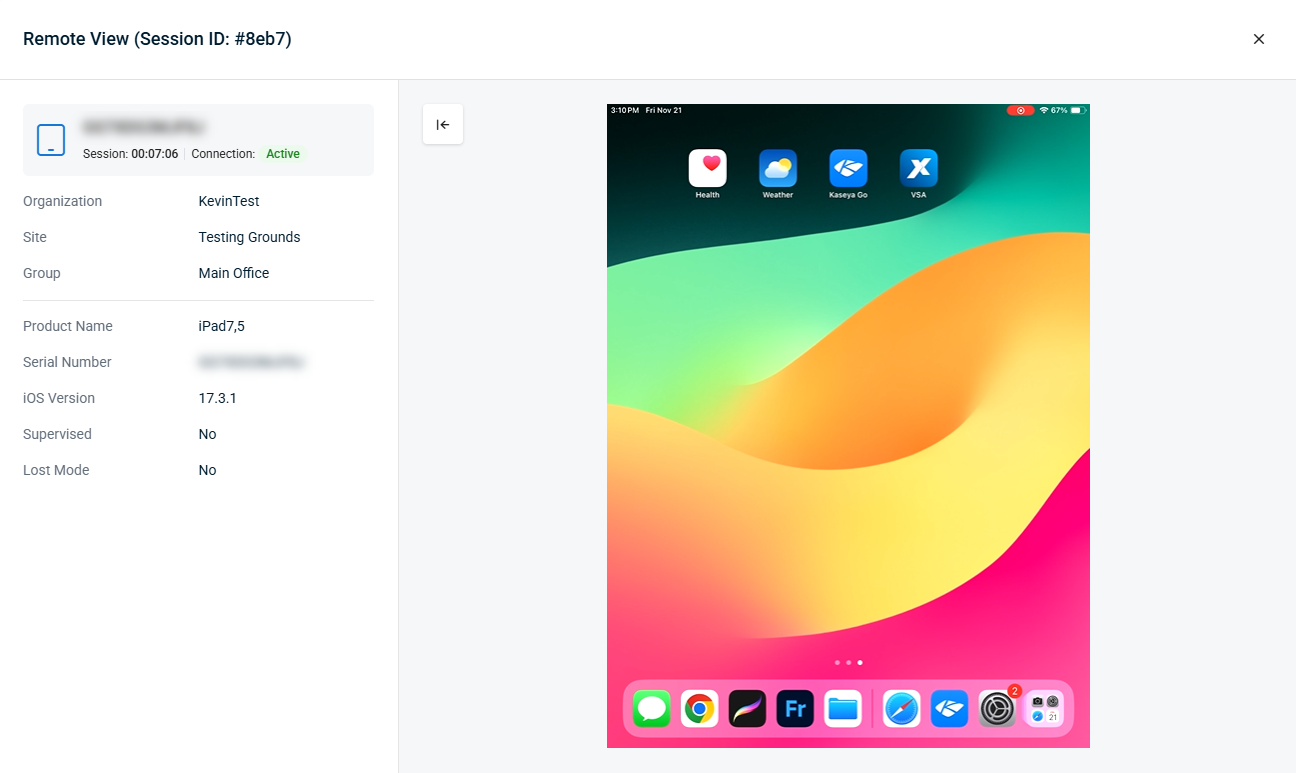
In VSA 10, you can utilize Remote View to view the screen of MDM enrolled iOS devices, streamlining troubleshooting and support. For information on which devices are supported, and enrolling devices in VSA 10 MDM, refer to VSA 10 MDM: enrollment.
NOTE To use location tracking, the Kaseya Go app must be installed on the device and location permissions must be allowed. Refer to VSA 10 MDM: enrollment
NOTE Remote View for iOS devices requires the end user of that device to give permission at the time of the connection.
 Initiating Remote View on an iOS device
In order to remotely view the screen of an MDM enrolled iOS device, follow the instructions below
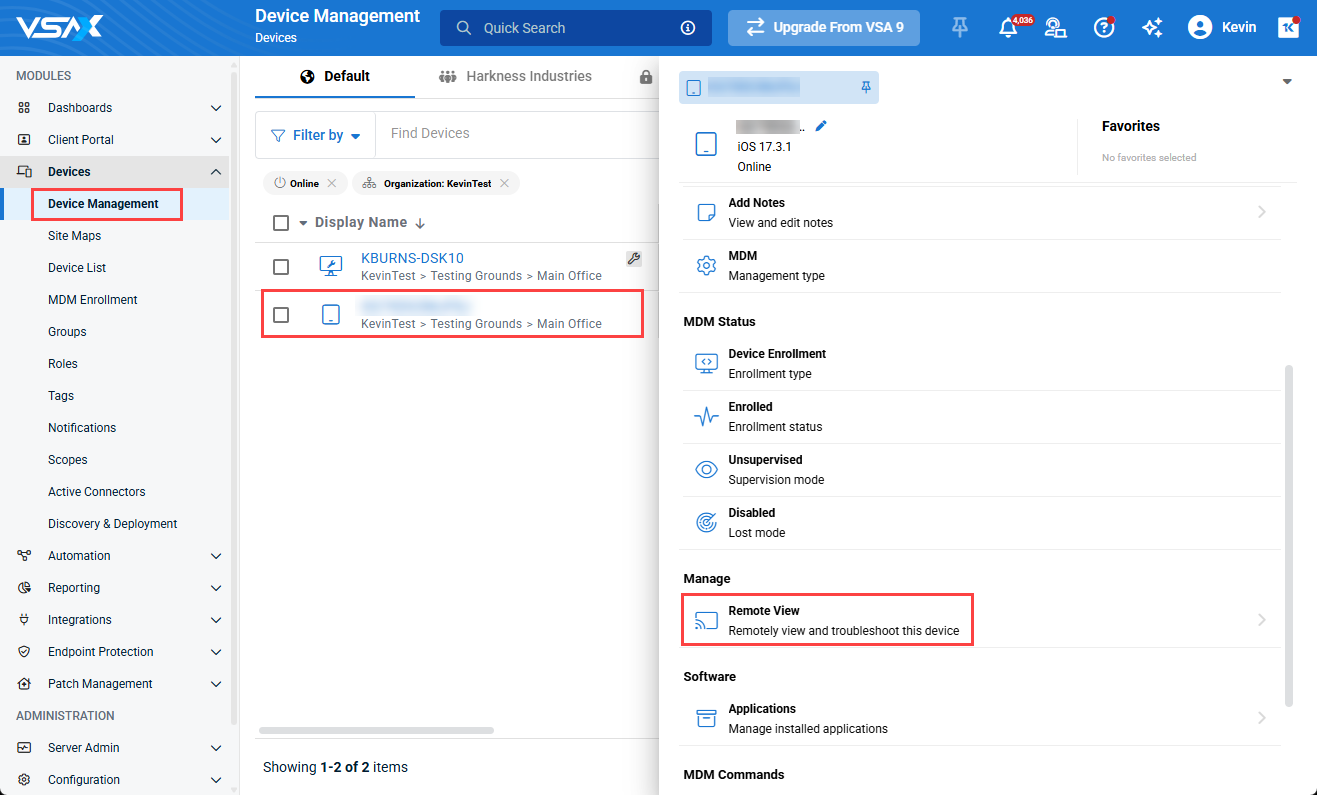
- In VSA 10, navigate to Devices > Device Management, and select the iOS device you would like to view, and select Manage > Remote View.
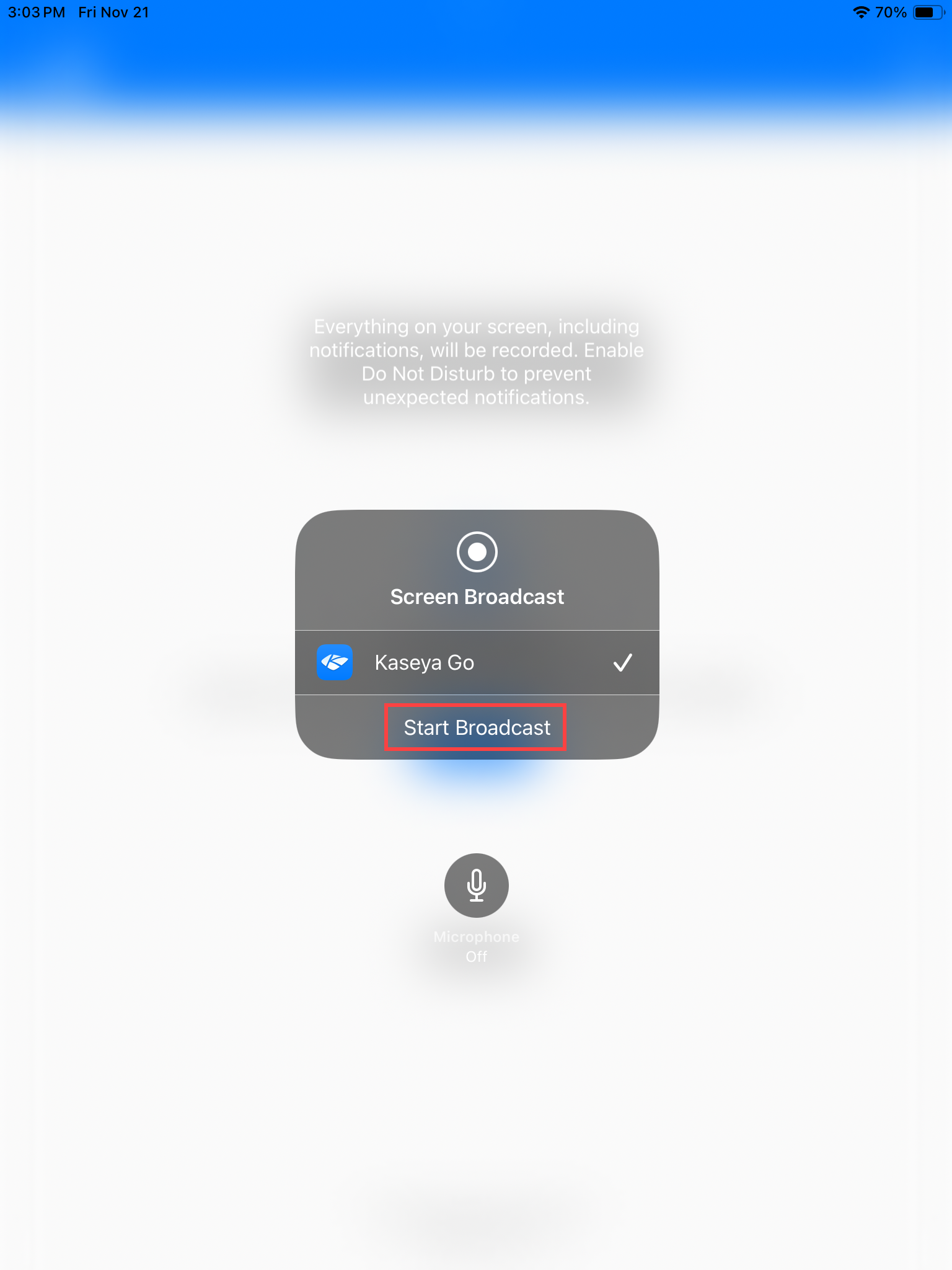
- On the remote iOS device, instruct the user to click the remote support request notification, or open the Kaseya Go app, and click Start Broadcast. The user can optionally enable microphone access at this point.
After a countdown on the user's iOS device, you will then be able to view their device's screen. At this point, you can walk the user through the needed troubleshooting steps.
When done, either you or the remote user can disconnect the Remote View session. Refer to Disconnecting a Remote View session.
Disconnecting a Remote View session
Once a Remote View session has been initiated, there are two ways to end the session.
From VSA 10:
To end the Remote View session from VSA 10, you just need to close the Remote View window.
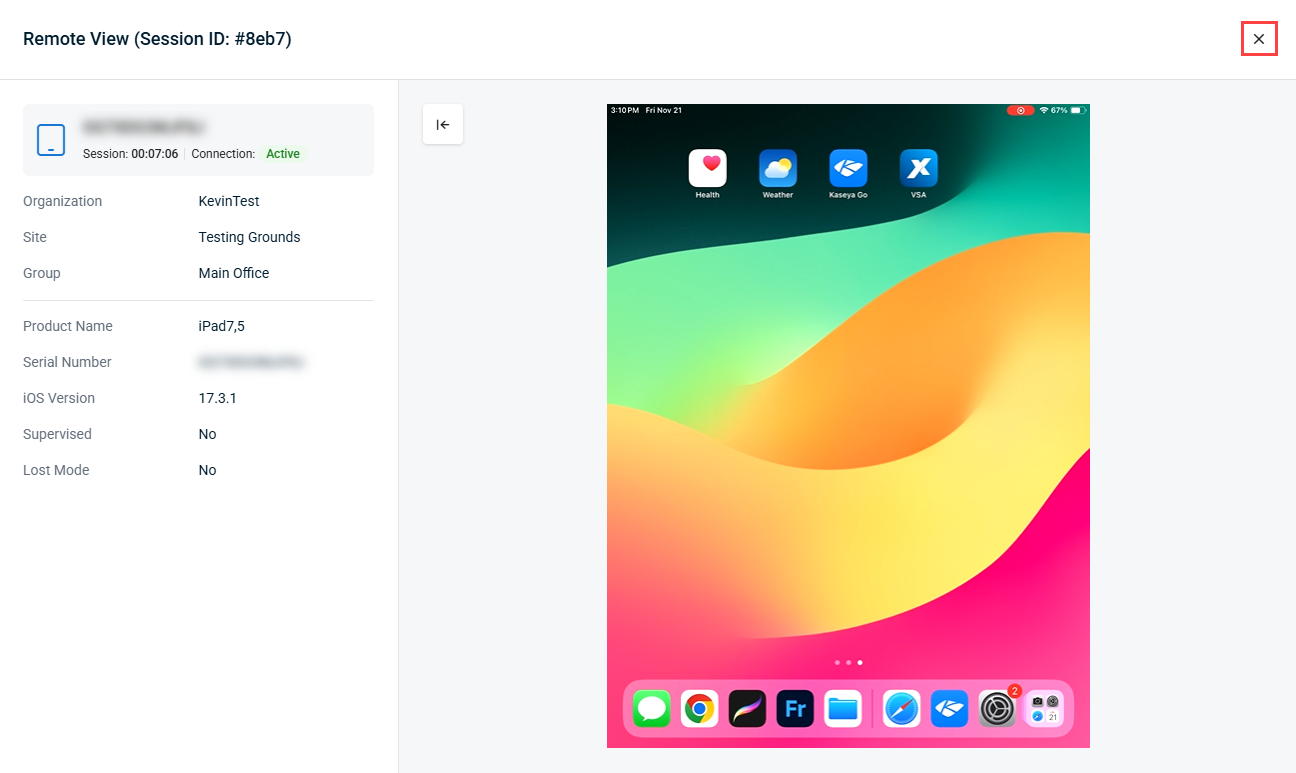
The end user will then receive a notification that the session has ended.
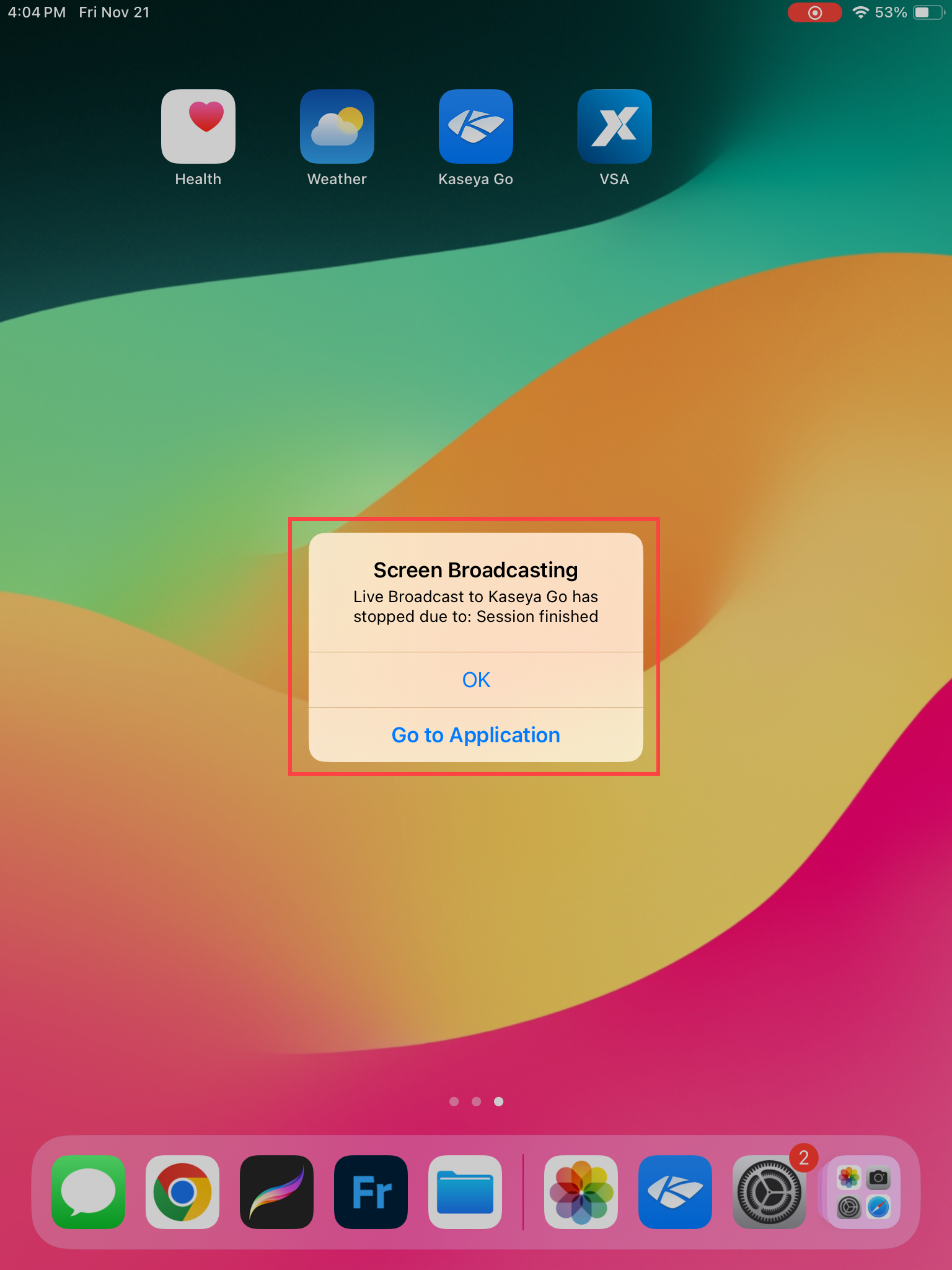
From the remote iOS device:
To end the Remote View session from the remote iOS device, first have the end user open the Kaseya Go app.
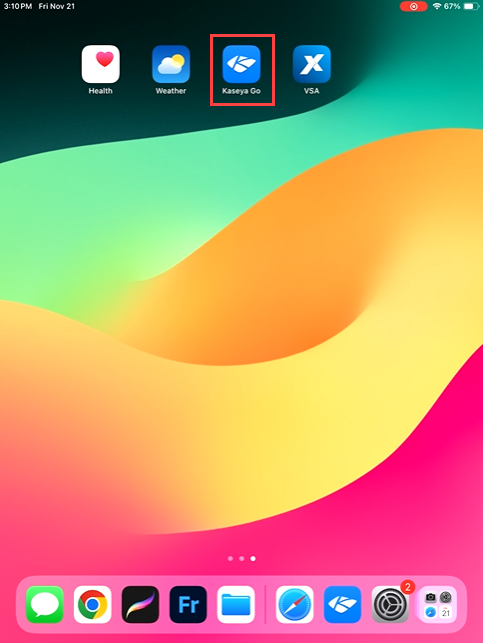
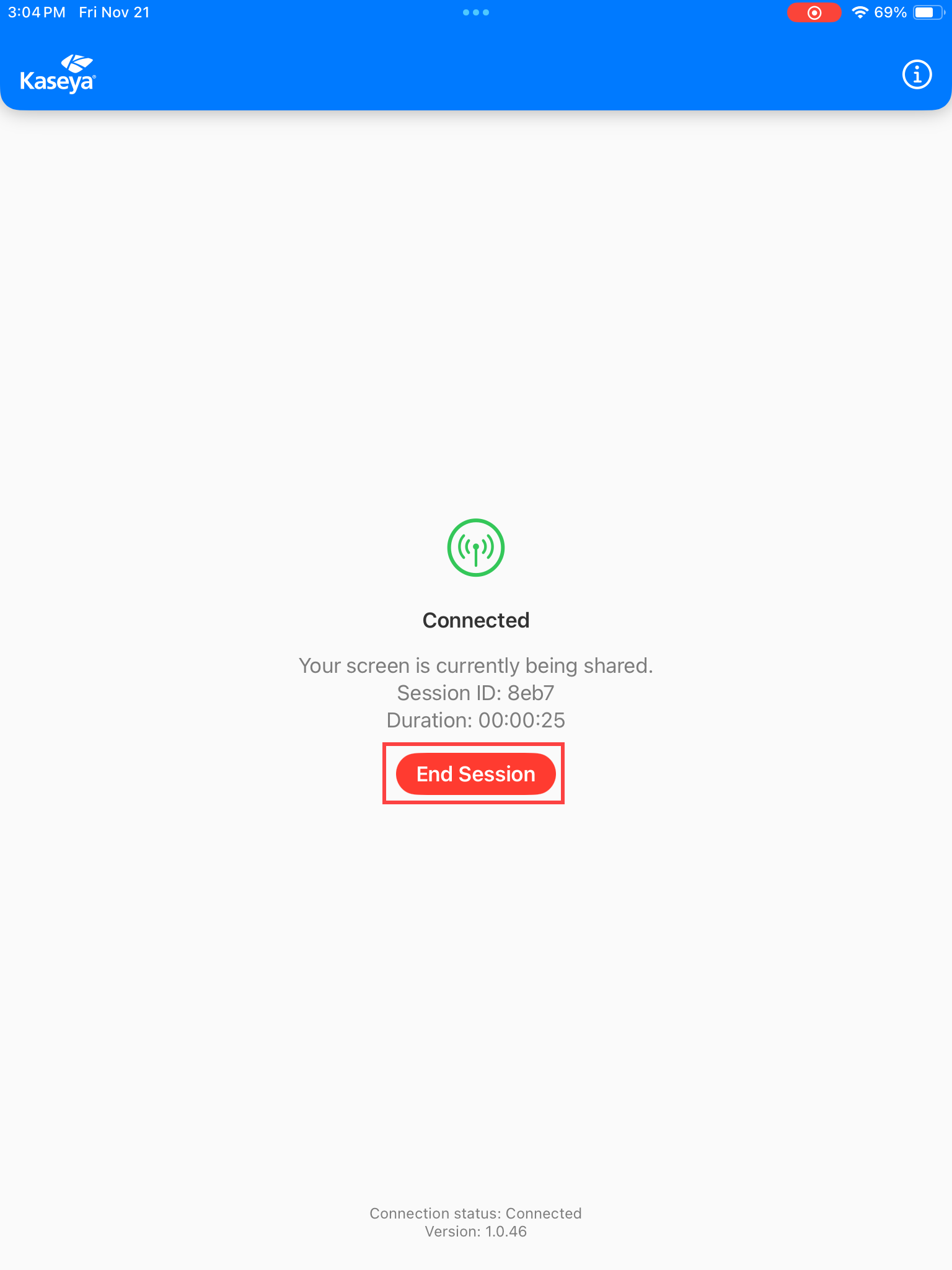
Once open, the end user can then click the End Session button to stop screen sharing.
Once the session has ended on the remote iOS device, the Remote View window in VSA 10 will show a message stating the session has ended.
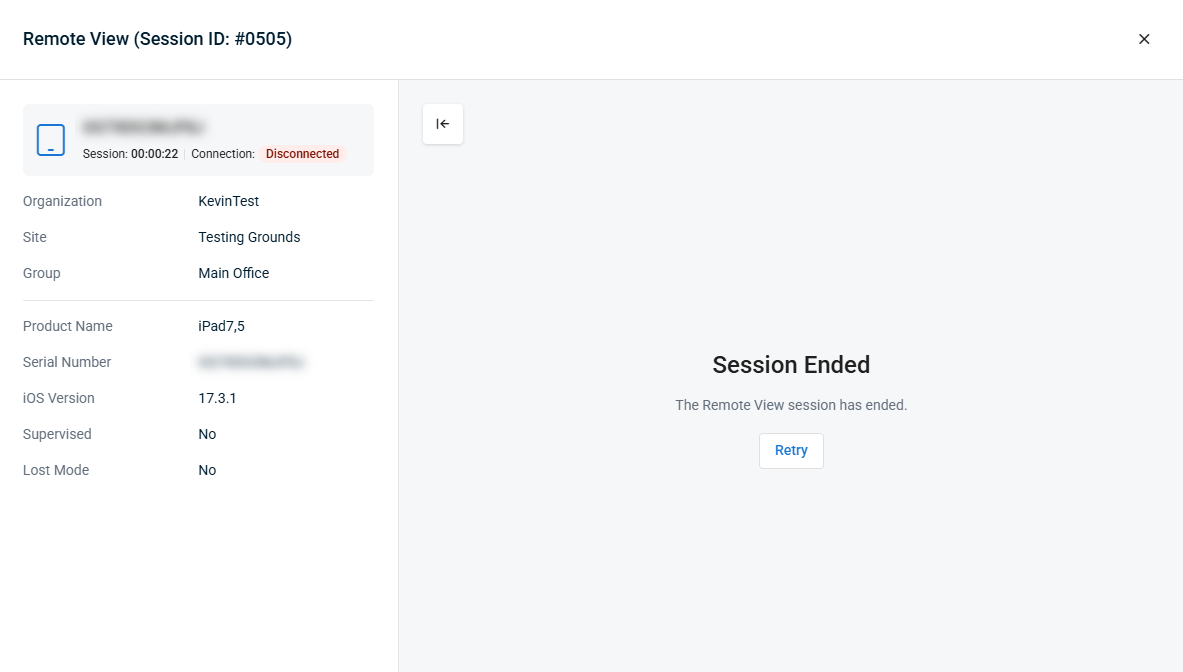
At this point, you can either close the Remote View window, or attempt reconnection by clicking the Retry button on the message to attempt to reconnect to the device.


