Diagnostic Logging
NAVIGATION Administration > Configuration > Settings > General
NAVIGATION Modules > Devices > Device List > select a device > Manage
PERMISSIONS Administrator
In some situations, you may need to get more detailed logs from your endpoints. This can be done by enabling Diagnostic Logging.
 Allow technicians to enable Diagnostic Logging on endpoints
Follow the below instructions to allow your technicians to enable Diagnostic Logging on devices.
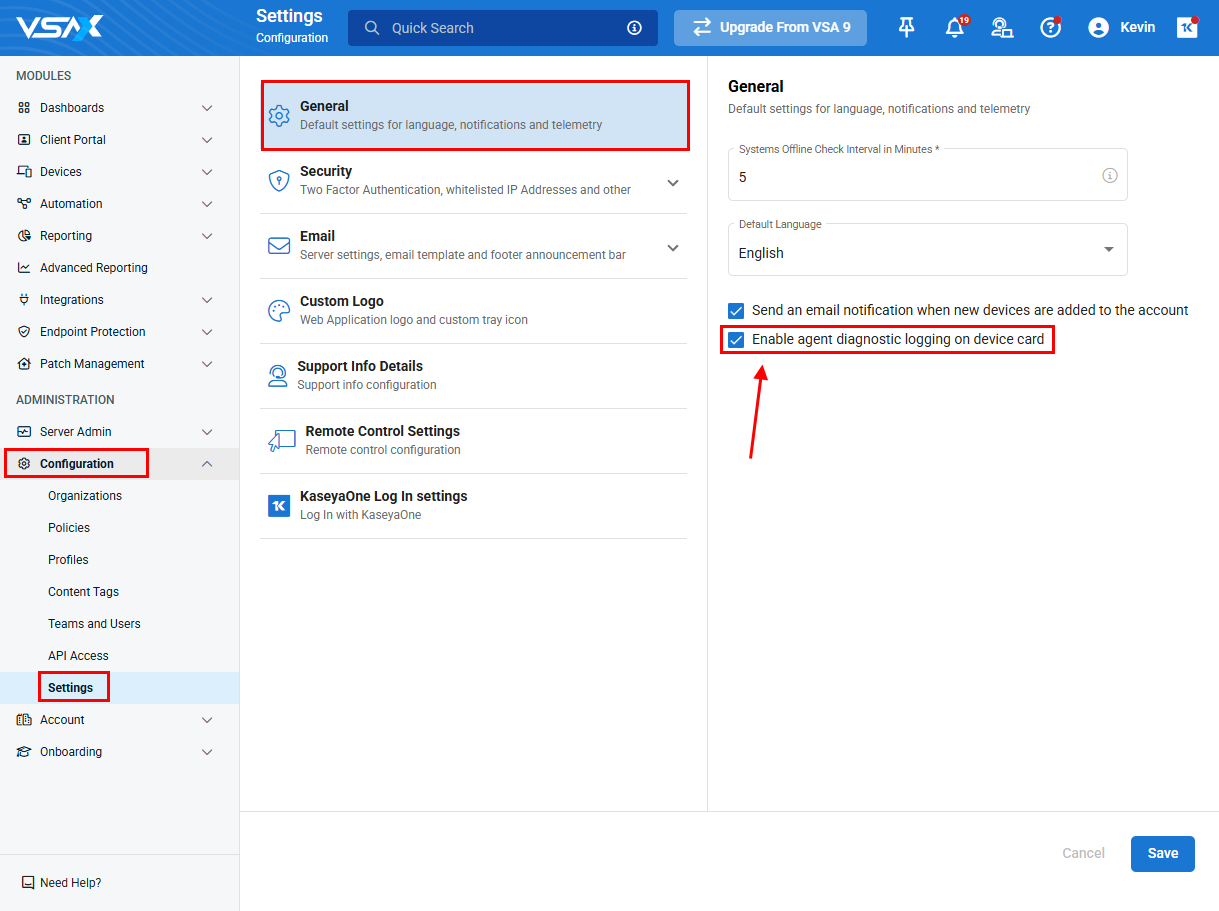
- In VSA 10, navigate to Configuration > Settings > General and make sure that Enable agent diagnostic logging on device card is checked.
-
Click Save to save configuration settings.
NOTE Enabling this will add the option to enable Diagnostic Logging at the device level, but it is off for all devices by default. To enable Diagnostic Logging at the device level, refer to Enable Diagnostic Logging on a device.
Enable Diagnostic Logging on a device
Follow the below instructions to turn on diagnostic logging at the device level.
- To enable diagnostic logging at the device level, in Devices > Device List, navigate to the source Windows device, and click Diagnostic Logging under Manage.
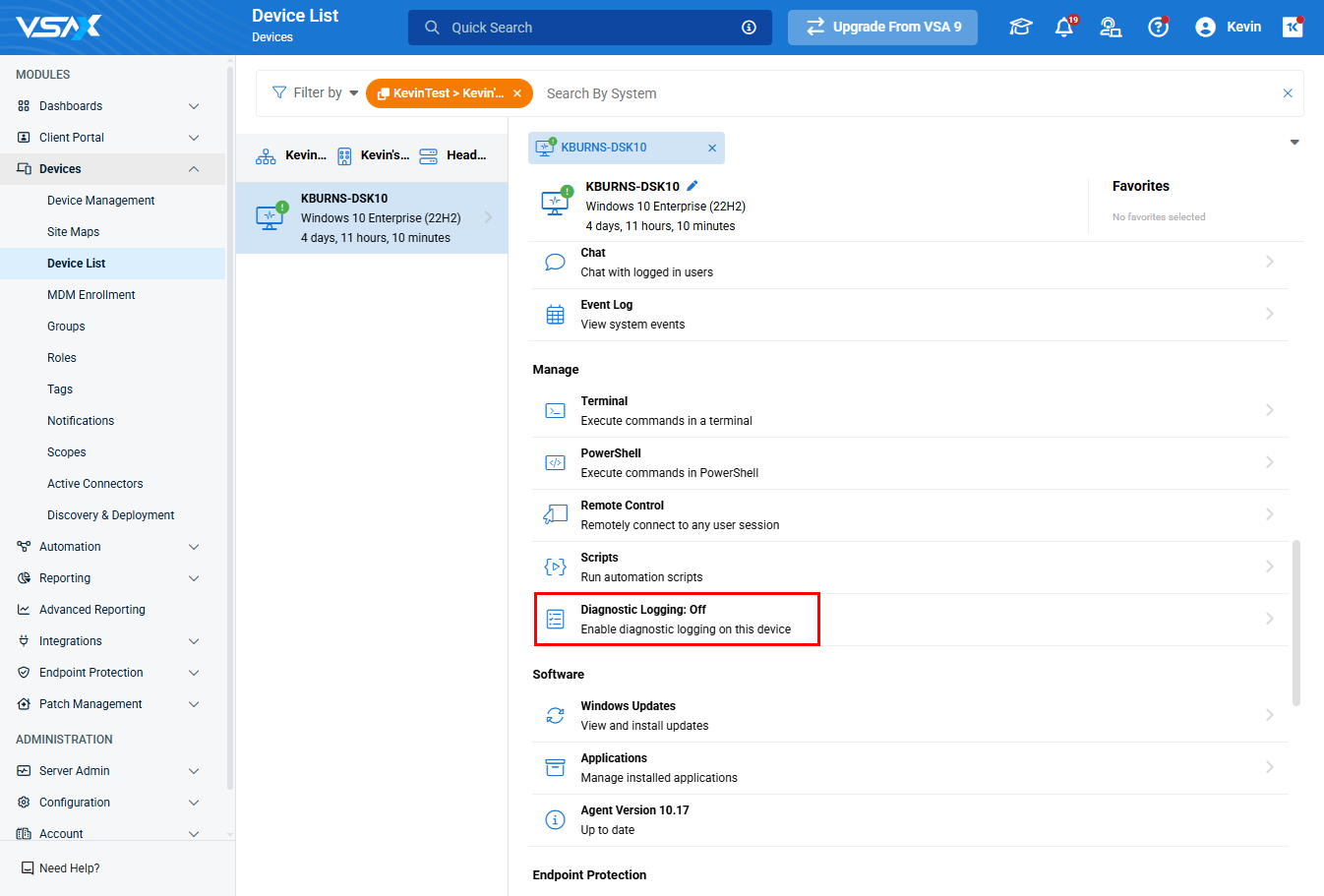
NOTE If the Diagnostic Logging option is missing from the device card, it will need to be enabled. Refer to Allow technicians to enable Diagnostic Logging on endpoints.
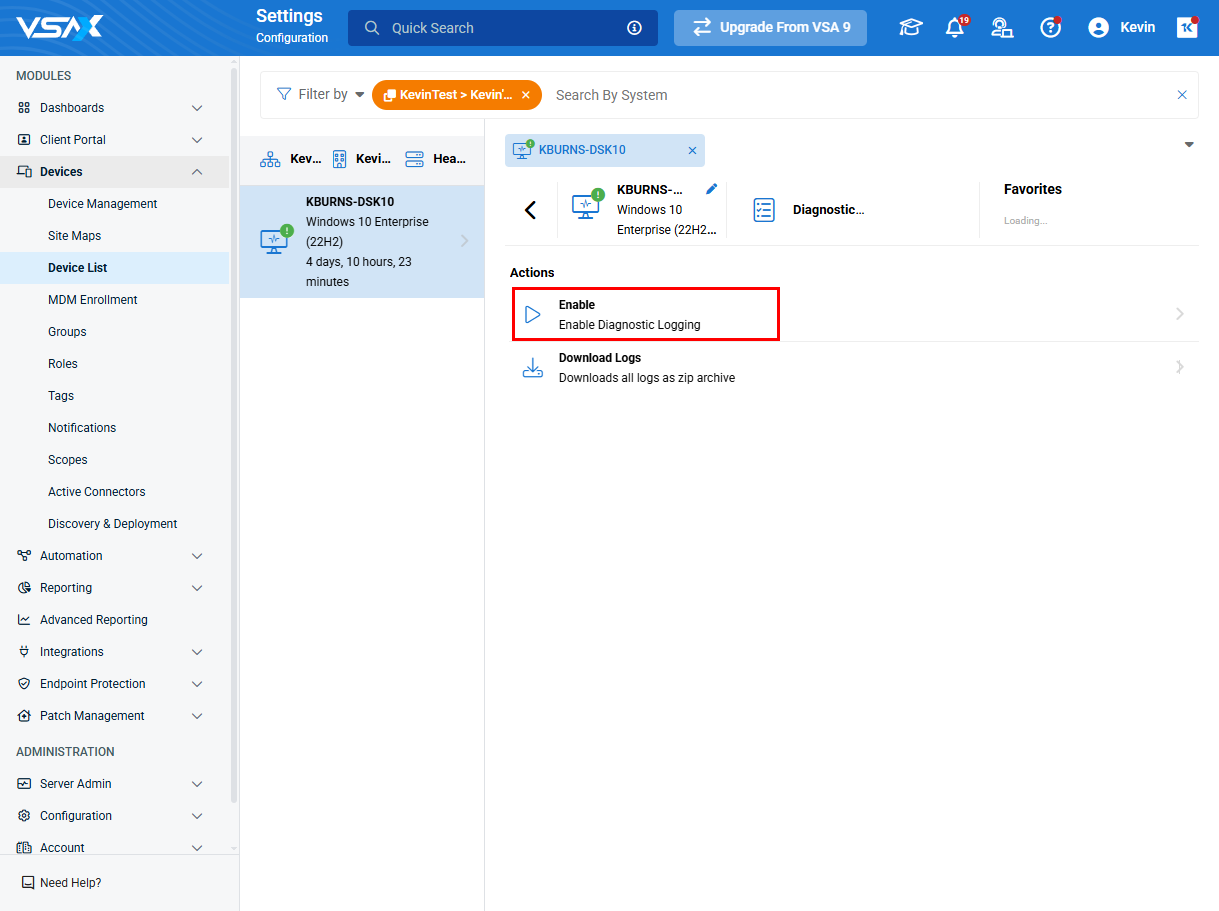
- Click Enable under Actions.
- In the popup that appears, set how long you want to turn on the logging for (up to 72 hours) and click Enable Diagnostic Logging.
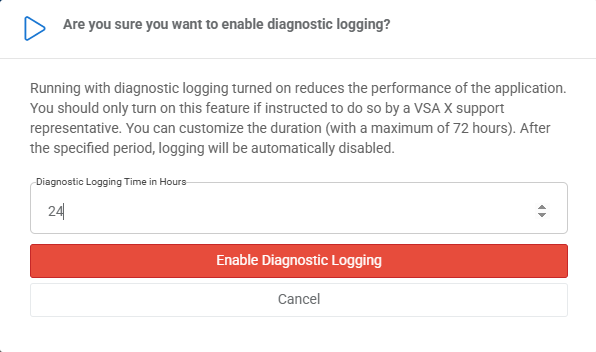
NOTE Enabling logging for an extended period of time can cause performance issues on devices. Only enable it for as long as it is needed to reproduce the issue and gather logs.


